
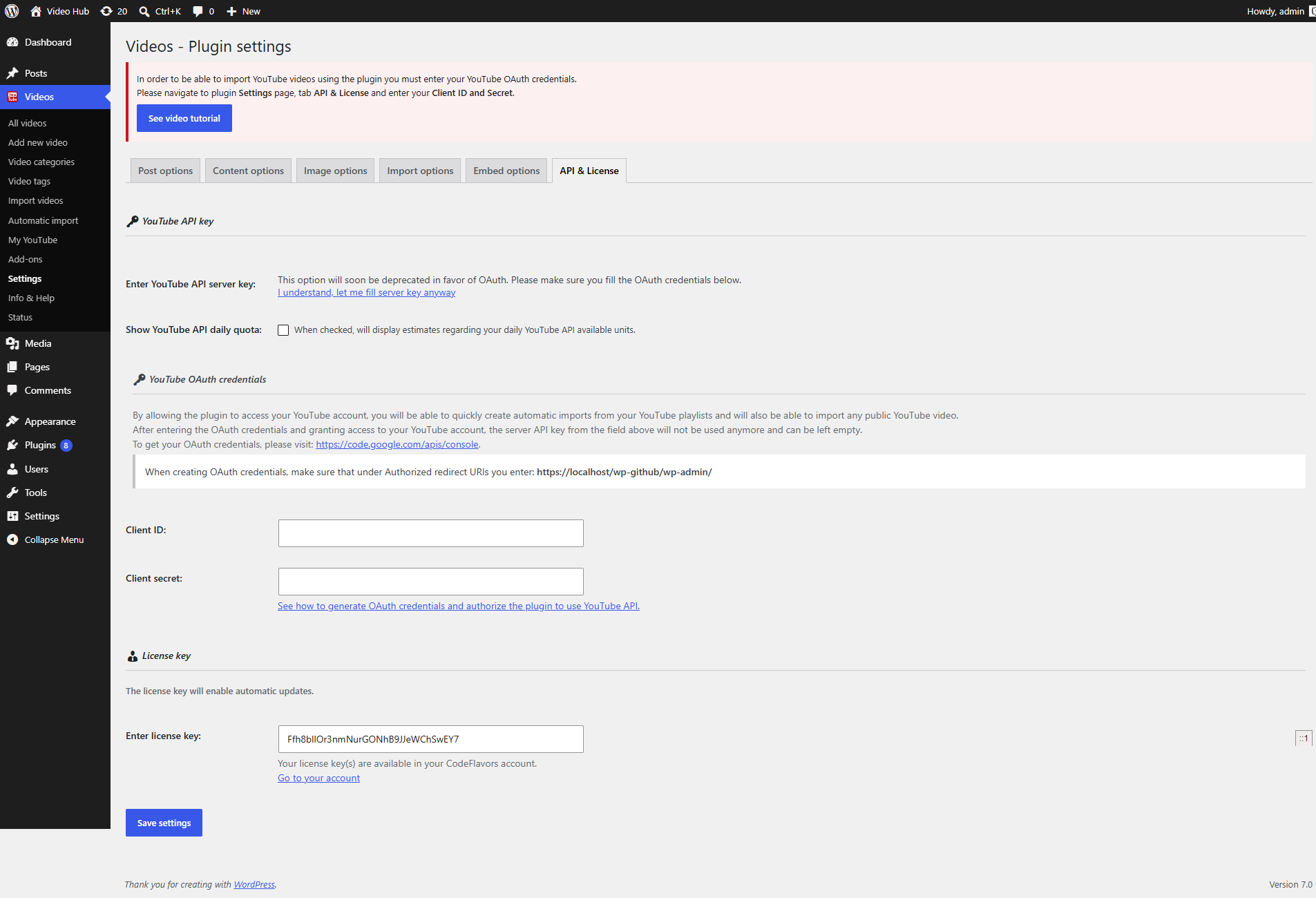
The API & License tab is where you connect Video Hub to the YouTube Data API and activate your license. You will find it under plugin menu Videos, page Settings, tab API & License.
YouTube API key
To import videos, the plugin needs access to the YouTube Data API. There are two ways to authenticate.
YouTube API server key
A server key is the quickest way to get started, but YouTube is phasing it out in favour of OAuth, so the plugin marks this method as deprecated. See Set YouTube server key for how to generate one.
Show YouTube API daily quota
When checked, the plugin displays an estimate of your remaining daily YouTube API quota, so you can keep an eye on how many calls you have left.
YouTube OAuth credentials
OAuth is the recommended way to connect the plugin to YouTube. After creating an OAuth Client ID and Client secret in the Google Cloud console and pasting them here, you authorize the plugin to query the YouTube API on your behalf. The redirect URI you need to add to your Google credentials is shown in this section.
See Set up YouTube OAuth client ID and secret for the full procedure, then use the link in this section to grant the plugin access.
License key
Your license key enables automatic plugin updates and update notices on the WordPress Plugins page. Paste the key into the Enter license key field and save. Your license keys are available in your CodeFlavors account — see Set up purchase code.