Blog

  • How to Find Your YouTube Channel ID (2026)

    How to Find Your YouTube Channel ID (2026)


    Your YouTube Channel ID is the long string that starts with UC… — and it’s not the same as your @handle or channel name. You’ll need it whenever a tool asks you to identify a channel exactly, including when you import a channel’s uploads into WordPress. Here are three ways to find it.

    1. From YouTube advanced settings

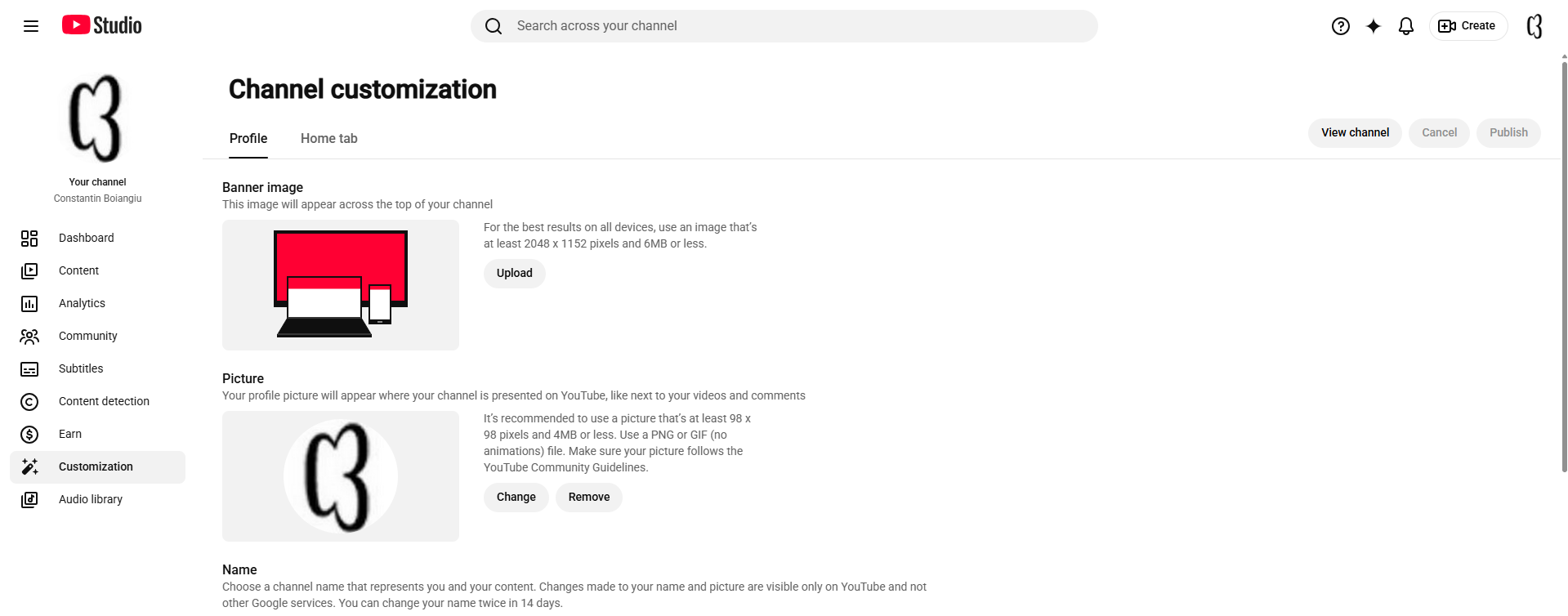
    Sign in to YouTube, open Settings → Advanced settings (or the channel’s advanced settings in YouTube Studio). Your Channel ID is listed there in full — the most reliable method.

    2. From your channel URL

    If your channel URL looks like youtube.com/channel/UCxxxxxxxx, the part after /channel/ is your Channel ID. Note that custom URLs (/@handle or /c/Name) hide it — use method 1 or 3 in that case.

    3. From the page source

    Open the channel page, view the page source, and search for externalId or channel_id — the UC… value next to it is the Channel ID.

    Why you need it: importing a channel

    Once you have the Channel ID, you can point a YouTube video importer at that channel and pull its uploads into WordPress as real posts — automatically, on a schedule. See how to import a YouTube channel into WordPress.

    Channel ID vs. @handle vs. custom URL

    It’s easy to mix these up. Your @handle (like @MyChannel) and a custom URL (/c/MyChannel) are friendly, human-readable names you can change. The Channel ID (UC…) is the permanent, unique identifier YouTube assigns — it never changes and is what APIs and import tools actually use. When something “can’t find” your channel from the handle, the Channel ID is almost always what it really wants.

    Finding the ID for a channel you don’t own

    You can only open advanced settings for your own channel. For any other channel, use method 2 or 3 above — read it from a /channel/UC… URL, or view the page source and search for externalId. Opening one of the channel’s videos and checking its links can also surface the UC… value.

    Turn that ID into an automated video site

    The Channel ID is the key that unlocks a self-updating library. Feed it to Video Hub, set how many uploads to pull and how often, and each new video becomes a real, indexable WordPress post — building a channel mirror you own, rank for and monetise on your own terms. Explore the possibilities in use cases.

    Turn a channel into a WordPress site

    Import a channel’s uploads as content you own. 30-day money-back guarantee.

  • How to Get a YouTube API Client ID and Secret (for WordPress)

    How to Get a YouTube API Client ID and Secret (for WordPress)


    To import YouTube videos into WordPress with OAuth, you need two credentials from Google: a Client ID and a Client Secret. They come from a free Google Cloud project and tell YouTube that your site is allowed to read video data. Here’s how to get them.

    What you’re creating

    • A Google Cloud project (free)
    • The YouTube Data API v3, enabled on that project
    • An OAuth Client ID and Client Secret for a web application

    Step 1 — Create a project & enable the API

    In the Google Cloud Console, create a new project, then open APIs & Services → Library, search for YouTube Data API v3 and enable it. This is the API your Client ID will be authorized to call.

    Step 2 — Configure the OAuth consent screen

    Under APIs & Services → OAuth consent screen, set the app name, your support email and the authorized domain. You can keep it in testing mode and add your own Google account as a test user.

    Step 3 — Create the Client ID & Secret

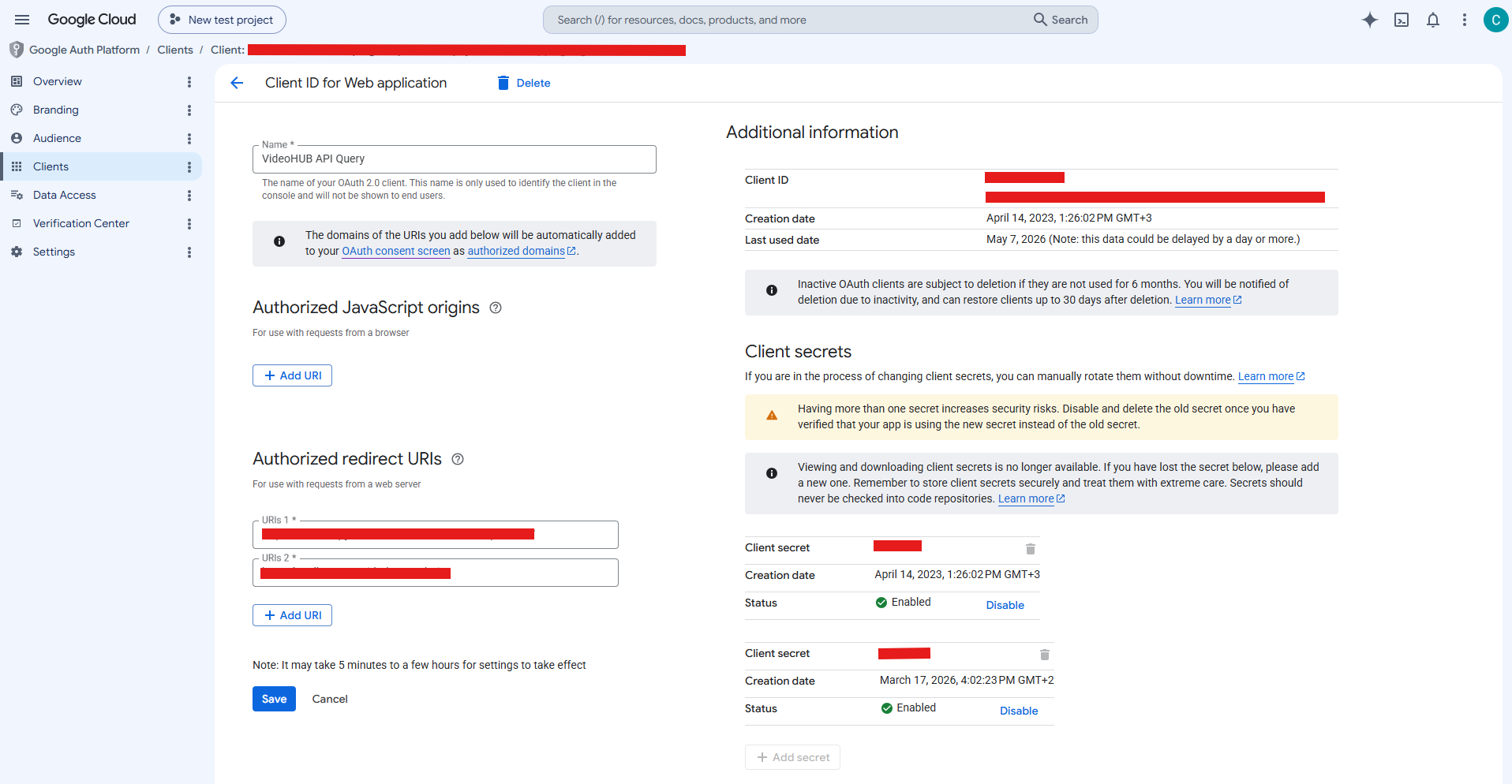
    Go to APIs & Services → Credentials → Create credentials → OAuth client ID, choose Web application, and add the redirect URI that Video Hub shows you. Google then displays your Client ID and Client Secret — copy both.

    Step 4 — Paste them into WordPress

    In Video Hub, paste the Client ID and Client Secret into the authentication settings and complete the OAuth connection. You can now import any public video plus your own playlists and unlisted videos. More on OAuth vs. a plain API key.

    A note on quotas

    The YouTube Data API gives each project a daily quota. Video Hub shows a daily quota estimate so heavy imports don’t hit the ceiling. See the FAQ for more on keys and quotas.

    Exact screens change over time — for the current click-by-click walkthrough, see the documentation.

    Got your Client ID? Start importing

    Connect YouTube and turn videos into content you own. 30-day money-back guarantee.

  • 6 YouTube Playlist Gallery Layouts for WordPress


    A great YouTube playlist gallery does two jobs: it shows your videos clearly, and it fits the page it lives on. The right layout for a product gallery isn’t the right one for a course library — so it helps to have options.

    Six responsive playlist themes

    Video Hub ships with six built-in, responsive playlist themes:

    • Grid — a responsive gallery grid, ideal for large libraries and product videos
    • Cinema — a dark, feature-first layout with one video center stage
    • Listy — a vertical list with room for titles and excerpts
    • Default, Simple & Minimal — lighter layouts for supporting sections

    See them side by side on the themes & demos page.

    Pagination, load-more & media modes

    Every theme supports pagination and AJAX load-more for long playlists, plus media display modes — embed the video, show a featured image with a video fallback, or image only. You can also display each video’s post content or excerpt alongside it.

    Built with blocks, no page builder

    Drop a playlist in with a Gutenberg block, an Elementor widget or the [cbc_playlist] shortcode. See the building options.

    How to choose the right layout

    Match the theme to the job. Grid suits big libraries and product galleries where thumbnails scan quickly. Cinema puts one video center stage — great for a launch, a featured episode or a homepage hero. Listy fits episodic content and courses, where titles and excerpts help people choose. Default, Simple and Minimal stay out of the way in sidebars and supporting sections. Compare them on the themes & demos page.

    Fast, responsive and privacy-friendly

    Every layout is responsive out of the box, with pagination and AJAX load-more so long playlists never dump hundreds of players onto one screen. Images can load on demand, the no-cookie embed keeps things privacy-friendly, and the player supports modest branding and no related videos — so a gallery stays light and on-brand.

    Galleries that are good for SEO

    Because each gallery is built from imported posts rather than raw embeds, every video also has its own indexable page behind the scenes — carrying schema markup and feeding your sitemap. The gallery gives visitors a clean way to browse, while the underlying video custom post type does the SEO work. See how that beats embed-only plugins.

    Show your playlists beautifully

    Six responsive themes, no page builder. 30-day money-back guarantee.

  • Video SEO in WordPress: Schema, Yoast Video SEO & Owning Your Content


    Video SEO in WordPress comes down to one idea: search engines can only rank a video page if it actually lives on your site. Embeds point to YouTube; imported posts live on your domain — and that’s the difference between ranking for your video and sending the traffic elsewhere.

    Own the page, earn the ranking

    When you import with Video Hub, each video becomes a real post with its own URL, title, description and slug. That gives search engines something to index — and gives you a page you can optimize, unlike a bare embed.

    Schema microdata & Yoast Video SEO

    Video pages include schema.org microdata so search engines understand they contain video, and the plugin is compatible with Yoast Video SEO for richer structured data and video sitemaps. You can also include videos in homepage listings and your main RSS feed. See the SEO features.

    Why this wins over embed widgets

    Feed and embed widgets render video with JavaScript and keep the value on YouTube. An owned, indexable library is a fundamentally stronger SEO position. See the full comparison.

    The building blocks of video SEO

    Ranking a video page comes down to giving search engines clear, structured signals. Importing gets you most of them by default:

    • A descriptive title, clean permalink and real body text on the page
    • The video’s description as crawlable content, not hidden inside an iframe
    • schema.org VideoObject markup — thumbnail, upload date and duration
    • Inclusion in your XML/video sitemap and RSS feed for fast discovery
    • Internal links between related videos to spread authority

    Earn video rich results

    With proper markup, your pages become eligible for video rich results — the thumbnail-and-detail treatment in Google search and the Video tab. That’s only possible when the video is part of an indexable page you own; an embed widget can’t earn it for you.

    Put videos where they help the whole site

    Because imported videos are real posts, you can surface them in homepage listings, category and tag archives, your main RSS feed and related-content sections — turning a single channel into fresh, interlinked pages that lift your site’s overall topical authority. Organise them as a video custom post type to keep the library tidy as it grows.

    Rank for your video content

    Own indexable video pages, not embeds. 30-day money-back guarantee.

  • Do You Need a YouTube API Key for WordPress? OAuth & Quotas Explained


    One of the first questions people ask before importing video is simple: do I need a YouTube API key? The short answer is yes — YouTube’s Data API is how any tool reads channel, playlist and video data — but how you connect, and how you stay within the limits, makes all the difference.

    OAuth vs. a plain API key

    Video Hub supports OAuth authentication (recommended) as well as a legacy API key. OAuth lets you import any public video plus your own playlists and unlisted videos, with a smoother, more capable connection than a bare key. Here’s how to get your Client ID and Secret, or see all the connection options.

    What the quota actually means

    YouTube gives each project a daily API quota, and different operations cost different amounts. Heavy importing can run into that ceiling — which is why Video Hub shows a daily quota estimate, so you can plan imports and avoid the dreaded “quota exceeded” error.

    Keeping imports efficient

    Scheduling imports sensibly, importing on-demand images, and pulling only what you need all help stretch your quota. Have more questions? The FAQ covers API keys, quotas and the no-cookie embed.

    Public videos vs. your own private content

    The connection method decides what you can reach. A plain API key is enough to import public videos, channels and playlists. OAuth goes further: by authenticating as the channel owner, you can also import your own unlisted videos and private playlists — useful when you’re mirroring your own channel onto a site you control. Set up a Client ID and Secret to use OAuth.

    Tips to stay under the quota

    • Schedule imports to run periodically rather than pulling everything at once
    • Import only new videos on each run instead of re-scanning the whole channel
    • Keep batch sizes modest — fewer videos per run costs less quota
    • Fetch images on demand so you’re not spending quota on assets you don’t display

    What happens if you hit the limit

    Quotas reset on a daily cycle, so a “quota exceeded” message isn’t permanent — imports simply resume once the allowance refreshes. Video Hub’s daily quota estimate helps you avoid surprises by showing roughly how much an import will cost before you run it, so you can size and time your syncs sensibly.

    For step-by-step OAuth setup, see the documentation.

    Import within your quota, the smart way

    OAuth, quota estimates and reliable imports. 30-day money-back guarantee.

  • How to Sync a YouTube Playlist with WordPress


    A playlist is one of the cleanest ways to organize video — so it makes sense to sync a YouTube playlist with WordPress and let it stay current on its own. Add a video to the playlist on YouTube, and it appears on your site, in the layout you chose, without you lifting a finger.

    Import the playlist once, sync it forever

    Point Video Hub at any playlist and it imports the videos as real posts. Scheduled, cron-based imports then keep the playlist in sync — new entries are pulled in automatically, off-request, so nothing slows your pages down. See the automation options.

    Display it as a themed gallery

    Once imported, show the playlist in one of six responsive themes — a tidy Grid, a dramatic Cinema view, a scannable Listy layout and more — with pagination and AJAX load-more for long lists. Browse the playlist themes.

    Build playlists your way

    Beyond a YouTube playlist, you can build playlists from hand-picked posts or by taxonomy — handy for course and membership libraries that group lessons by topic.

    What “in sync” really means

    You decide how many videos to pull and how often the sync runs; from then on, new entries added to the YouTube playlist are imported for you on schedule. Each becomes a real post with its title, description, thumbnail and publish date mapped across — and because imports happen off-request via cron, the sync never blocks a visitor’s page load. Start from an existing playlist and you can bulk-import the back catalog first, then let automation handle everything new.

    Perfect for series, courses and channels

    Playlists map neatly onto real-world content: a course module, a podcast season, a product range or a weekly show. Sync each playlist to its own themed gallery and you get a self-updating section for every topic — ideal for course and membership libraries where lessons need to stay grouped and in order.

    A synced playlist works for SEO, too

    Every synced video is an indexable post on your domain — not a JavaScript embed — so it carries schema markup, appears in your sitemap and RSS, and can rank on its own. The playlist gives visitors a tidy way to browse, while search engines get a steady stream of fresh, ownable video pages. See how it compares to embed widgets.

    For setup details, see the documentation.

    Sync your playlists to WordPress

    Set it once and it stays current. 30-day money-back guarantee.

  • YouTube Videos as a Custom Post Type in WordPress: Why It Beats Embeds

    YouTube Videos as a Custom Post Type in WordPress: Why It Beats Embeds

    There’s a big difference between embedding a YouTube video and importing it as a custom post type in WordPress. One is a temporary window to YouTube; the other is a permanent, indexable page you own. If you’re building a video library, the post type matters more than you’d think — it shapes your SEO, your site structure, and what you can actually do with the content.

    What a “custom post type” actually buys you

    A dedicated “video” custom post type (CPT) gives each imported video its own single page, its own archive, its own permalink slug, and a place in your taxonomies. That means real URLs search engines can crawl, comments your audience can leave, and a structure you can browse and filter — none of which a bare embed provides. An embed is just a player dropped into someone else’s page; a CPT is a first-class piece of content on your domain. See how that compares to embed-only plugins.

    Better SEO: every video becomes a page that can rank

    This is the biggest reason to import rather than embed. When a video is a real post, it gets a unique, crawlable URL with its own title, description and body text — the on-page signals Google needs to understand and rank it. Each page can carry schema.org VideoObject microdata, works with Yoast Video SEO, and is included in your XML sitemap and RSS feed, so search engines discover every video automatically.

    Because the content lives on your domain, the traffic, the rankings and the next click stay with you instead of being handed to YouTube. You can target long-tail search terms in each video’s title and description, earn video rich-result thumbnails in the SERPs, and build internal links between related videos — compounding authority across your whole library. Read more on video SEO done right.

    A cleaner site structure

    A custom post type keeps your video content organised as it scales from a handful of clips to hundreds or thousands. Videos get their own archive page, separate from your blog, plus categories, tags and custom taxonomies you can use to group and filter them — by topic, series, season or guest. Clean permalinks make every video shareable and memorable, and you can add the video archive straight into your navigation menu.

    That structure powers browsable, paginated playlist layouts, “related videos” sections, and taxonomy-driven pages that are great for both visitors and search engines. Your blog stays a blog, your videos stay a tidy, self-contained library — and the two can still cross-link wherever it helps.

    Ways to use a video CPT on your site

    • Mirror your channel — give every YouTube upload a home on a site you own, so you rank and monetise on your own terms.
    • Course & membership libraries — organise lessons into taxonomies and themed, paginated playlists members can browse.
    • News & niche publishing — auto-curate topical video by keyword or channel and keep a section fresh on autopilot.
    • Product, tutorial & support videos — attach how-tos to a knowledge base or product pages with their own searchable URLs.
    • Podcast or episode archives — turn each episode into an indexable page with show notes and schema.

    Explore more scenarios on the use cases page.

    Posts or a video CPT — your choice

    Video Hub can import videos as regular posts (so they flow into your blog, categories and homepage) or as a separate “video” custom post type with its own archive and single pages. You pick the model that fits your site — and you can combine both. See the publishing options.

    Build a real video library

    Import YouTube as content you own. 30-day money-back guarantee.

  • How to Import a YouTube Channel into WordPress (Automatically)

    How to Import a YouTube Channel into WordPress (Automatically)


    If you want to import a YouTube channel into WordPress — and not babysit it forever — the trick is automation. Pasting embed links one by one doesn’t scale, and it leaves every view and every bit of SEO value on YouTube. A proper importer pulls the channel in once and then keeps it in sync on its own.

    Embeds vs. importing a channel

    An embed is a window to YouTube; an import is content on your domain. When you import a channel with Video Hub, each upload becomes a real WordPress post — indexable, categorized and styled by your theme — instead of a throwaway iframe.

    How automatic channel import works

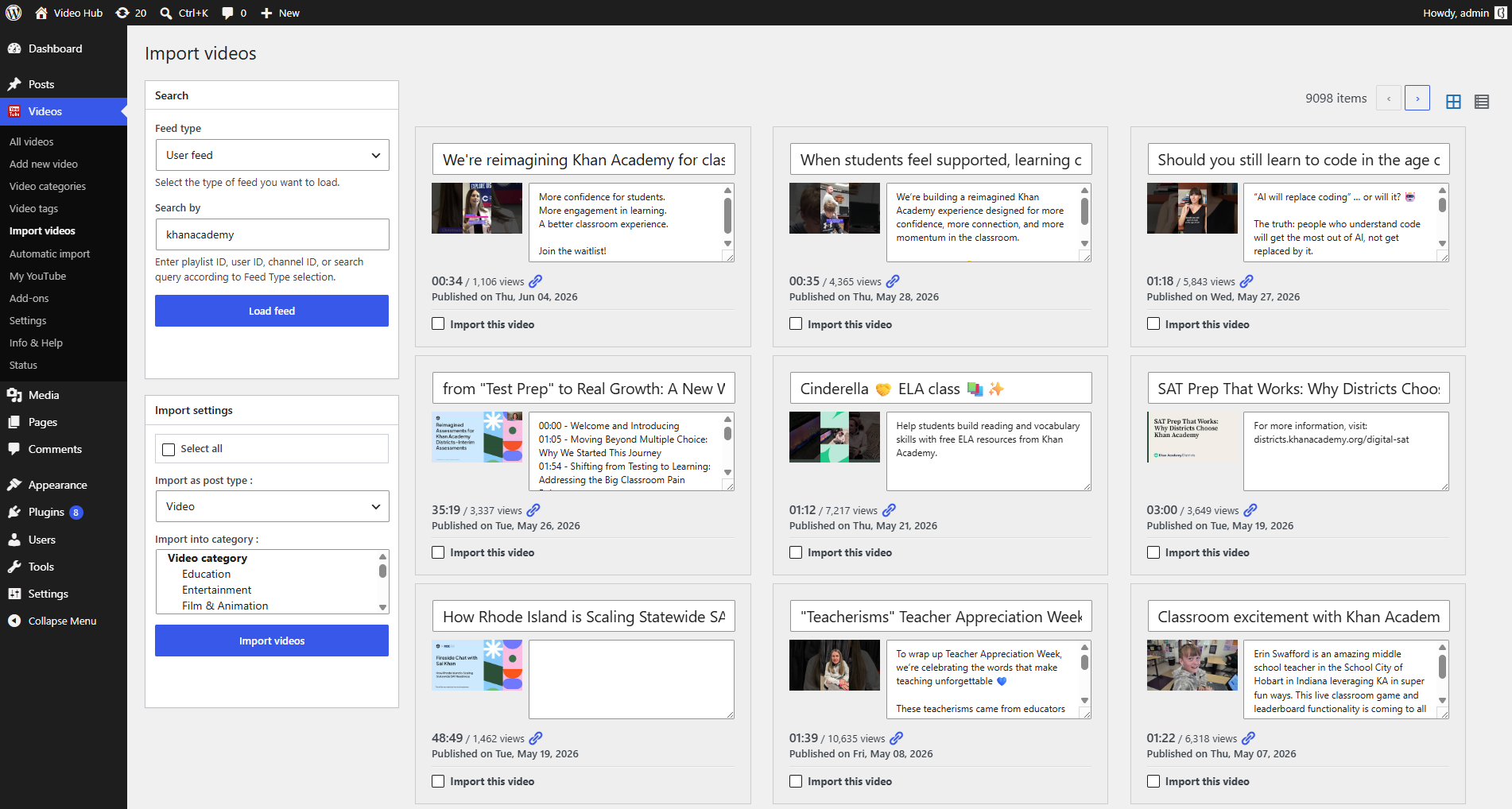
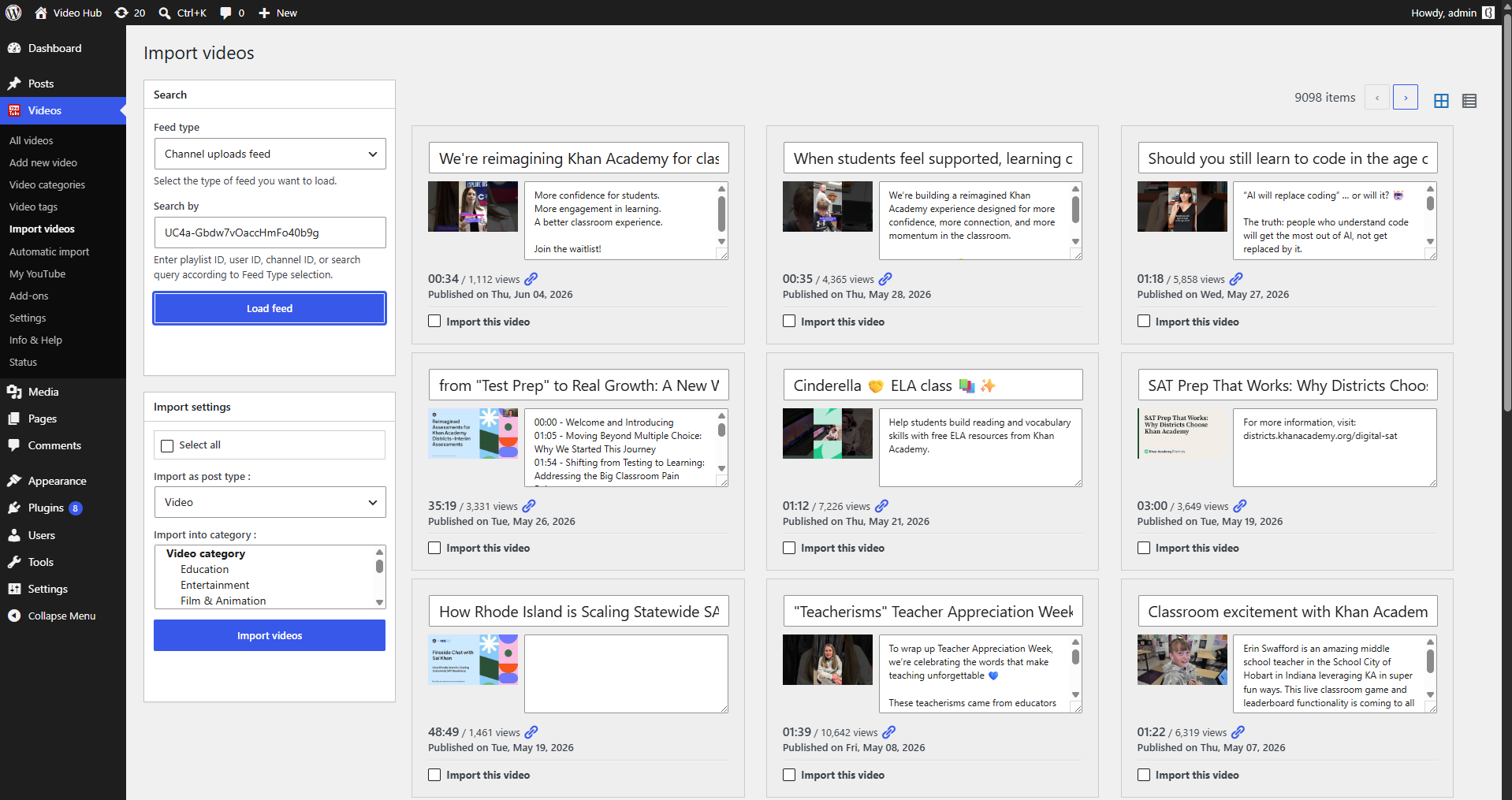
    You point the importer at a channel’s uploads feed (you’ll need the channel’s ID), choose how many videos to pull and how often, and let scheduled, cron-based imports do the rest. New uploads appear on your site automatically, with titles, descriptions, thumbnails, categories and publish dates mapped for you. Because imports run off-request, syncing never slows a visitor’s page load. See all the import options.

    Bulk-import the back catalog, too

    Starting from an established channel? Bulk-import the existing videos — preview the results and select exactly what you want — then let automation handle everything new from there.

    Every detail mapped, not just the video

    A channel import is only useful if the data comes with it. Video Hub maps each upload’s title, description, publish date and thumbnail (set as the featured image) into the WordPress post, and can assign categories and tags so videos land in the right part of your site. Choose to import as regular posts — flowing into your blog, categories and homepage — or as a dedicated video custom post type with its own archive and single pages.

    Why an owned channel mirror is better for SEO

    When uploads become real posts, each one is a crawlable URL carrying schema.org video markup and feeding your XML sitemap and RSS — so search engines can index and rank every video on your domain. Instead of donating views and SEO value to YouTube, you keep visitors, rankings and ad revenue on a site you control, with internal links tying the library together. See video SEO in WordPress.

    Set it up to stay light and tidy

    Because imports run off-request via cron, even a large channel won’t slow your pages. Images can be fetched on demand, the importer works with the official AMP plugin, and a maintenance routine can retire videos that have been deleted or made non-embeddable — so your library stays current without manual cleanup.

    For the exact setup steps, see the documentation.

    Import your channel into WordPress

    Turn a channel into content you own — automatically. 30-day money-back guarantee.