There’s a big difference between embedding a YouTube video and importing it as a custom post type in WordPress. An embed is a window to YouTube placed inside one of your pages. An imported video is a page of its own, on your domain, with a title, text, categories and an address you control. If you are building a video library, the way videos are stored decides how well that library can be searched, browsed and linked.
In short
- A video custom post type gives every video its own URL, single page, archive, categories and tags.
- Unlike embeds, these are real pages: indexable, commentable, searchable on your site, listed in your sitemap.
- Video Hub imports into its own “Videos” post type or into regular posts, chosen per import.
What is a custom post type in WordPress?
WordPress comes with two main kinds of content: posts and pages. A custom post type (CPT) is a third kind that a plugin or theme registers for a specific job. WooCommerce products, event listings and portfolio items are all custom post types. Each one gets its own menu in the admin, its own list screen, its own archive page and its own URL base, while still using everything WordPress already does for posts: the editor, featured images, comments, revisions and search.
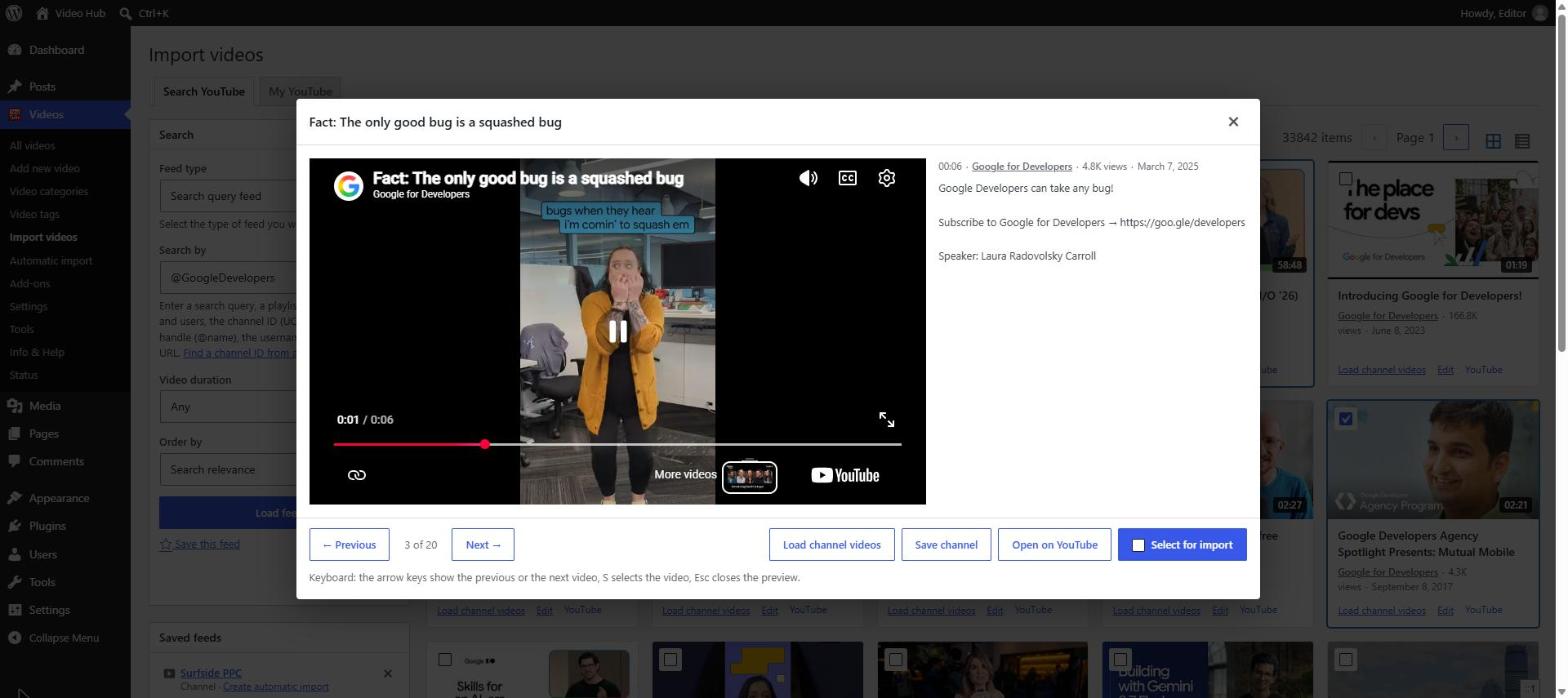
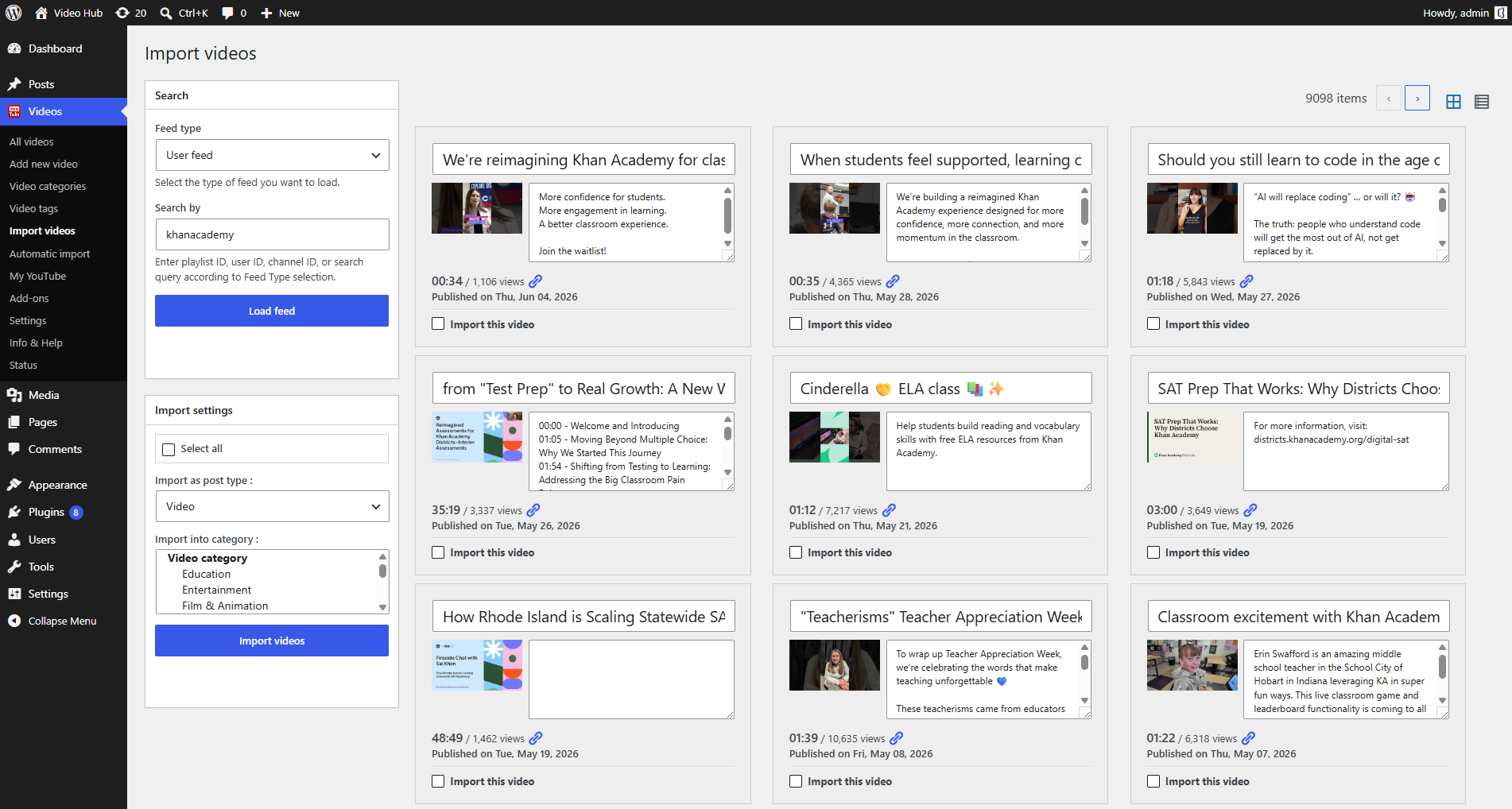
A video post type applies the same idea to YouTube videos. Instead of pasting players into articles, each video becomes an entry in a dedicated Videos section, with the YouTube title, description and thumbnail filled in for you.
Embedding vs. importing: what changes for your site
Both approaches play the same YouTube video. What differs is everything around the player:
| Imported as a video post | YouTube embed | |
|---|---|---|
| Its own page and URL | Yes, one page per video | No, the player sits inside another page |
| Text search engines can read | Title and description become the page’s title and content | Only the text you write around the player |
| Archive, categories, tags | Video categories and tags, each with its own archive page | None |
| Sitemap, RSS, site search | Listed like any other public post | Only the page that holds the embed |
| Comments, author, revisions | Yes, like any post | Only on the host page |
| Work per video | Imported in bulk or automatically | Pasted by hand, one at a time |
Embeds still have their place: a single video that illustrates an article is fine as an embed. Once video is a section of your site rather than an illustration, pages win. For a broader look at the options, see our comparison of YouTube plugins for WordPress.
What the Video Hub “Videos” post type gives you
When you import with Video Hub and keep the default settings, videos are saved in a dedicated post type. Here is what that includes:
- A Videos menu in the admin, separate from Posts, with All videos, Video categories and Video tags.
- A page for every video at an address like
/video/your-video-title/. The base word is yours to change. - Archives: one for all videos, plus one for every video category (
/videos/…) and video tag (/video-tag/…). - Video categories with parents and children, created from YouTube’s own categories or set for each import.
- The usual post features: featured image, excerpt, author, comments, revisions and custom fields, in the block editor and the REST API.
- Optional reach: show videos on the homepage next to your latest posts and include them in the main RSS feed.
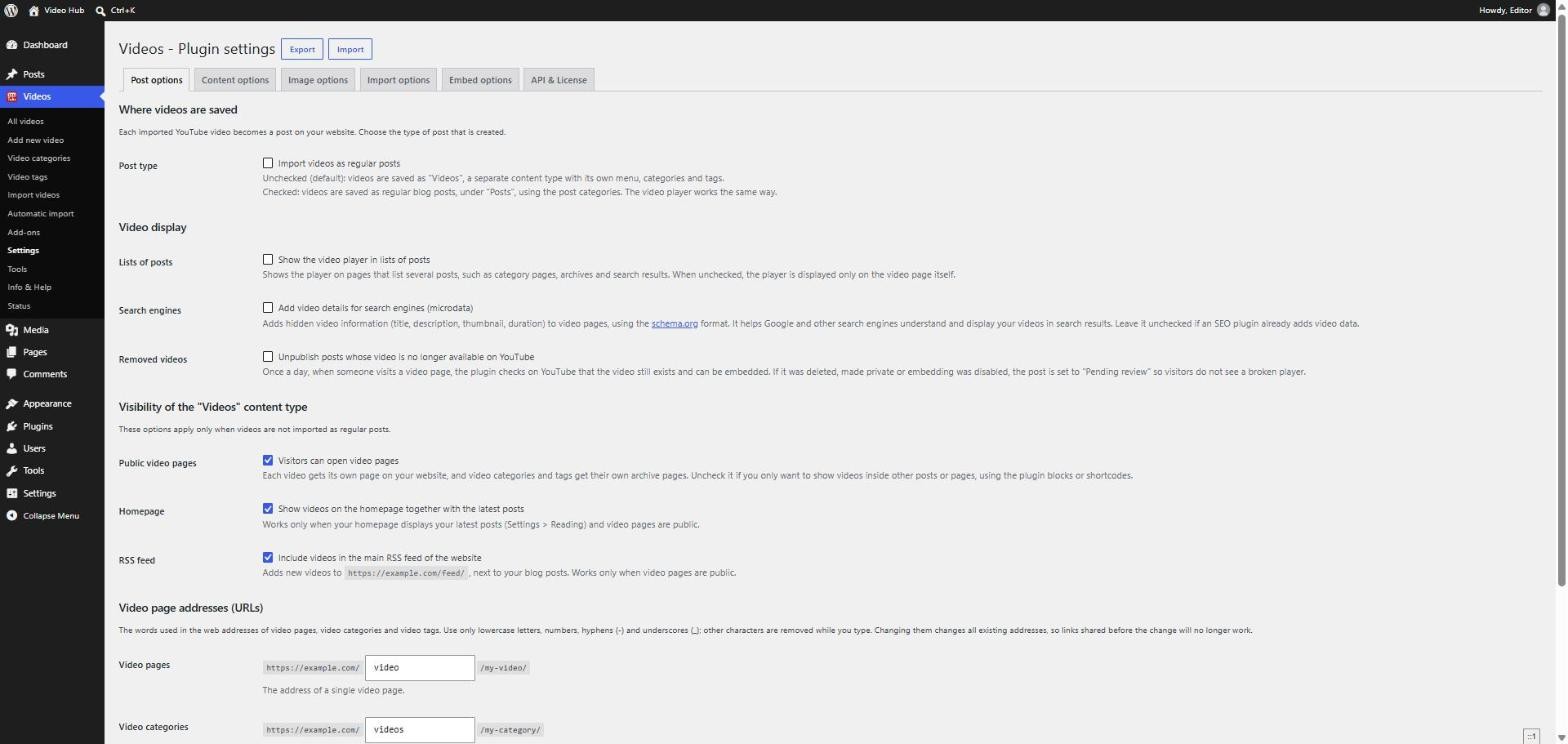
The post options guide explains each setting. One tip: decide on the address words before you publish, because changing them later changes every video’s URL.
Better SEO: every video becomes a page that can rank
This is the strongest reason to import rather than embed. A real post has a unique, crawlable URL with its own title and body text, which are the signals Google uses to understand a page. The YouTube description becomes readable content instead of text hidden in an iframe, the thumbnail becomes the featured image, and the page appears in your XML sitemap and site search.
On top of that, Video Hub can add schema.org VideoObject details to video pages, and it fills in the video data of Yoast Video SEO when that plugin is installed. You can target a different search phrase with each video’s title, link related videos to each other and build topical depth over time. Google still decides whether a page gets a video result, but a page you own is the only kind that can get one for your domain. The details are in our guide to video SEO in WordPress.
A cleaner site structure
A separate post type keeps video content organised as it grows from a dozen clips to thousands. Your blog stays a blog, your videos stay a self-contained library, and the two can still link to each other wherever it helps.
The structure also gives you building blocks for the front end. Add the video archive to your menu, use the Video Archive block for a grid or list with a muted preview on hover, build playlist galleries from a video category, or drop the Latest Videos and Videos by Taxonomy widgets into a sidebar. Video categories map neatly onto topics, series, seasons or guests.
Custom post type or regular posts: which should you choose?
Video Hub supports both, so pick the model that matches how your site uses video.
Choose the Videos post type when…
- video is one section of a larger site, such as a magazine, a business site or a course library
- you import many videos and don’t want them to flood your blog and its feed
- you want playlists that fill themselves from a video category
Choose regular posts when…
- the site is a video blog and every video should appear in the main post stream
- your theme or page builder only designs regular posts
- you use a supported video theme: Video Hub can import in the format that theme expects
You don’t have to choose once for everything. Each automatic import has its own post type setting, so one channel can fill the Videos section while another feeds the blog.
Ways to use a video custom post type
- Mirror your channel: every YouTube upload gets a page on a site you own. See how to import a YouTube channel into WordPress.
- Course and tutorial libraries: lessons grouped by video category and shown as ordered playlists.
- News and niche publishing: pick videos from many channels, import them as drafts and add your own commentary before publishing.
- Product and support videos: how-tos with their own searchable URLs, linked from product pages and help articles.
- Podcast and episode archives: each episode becomes a page you can extend with show notes.
More scenarios are on the use cases page.
How to set it up with Video Hub
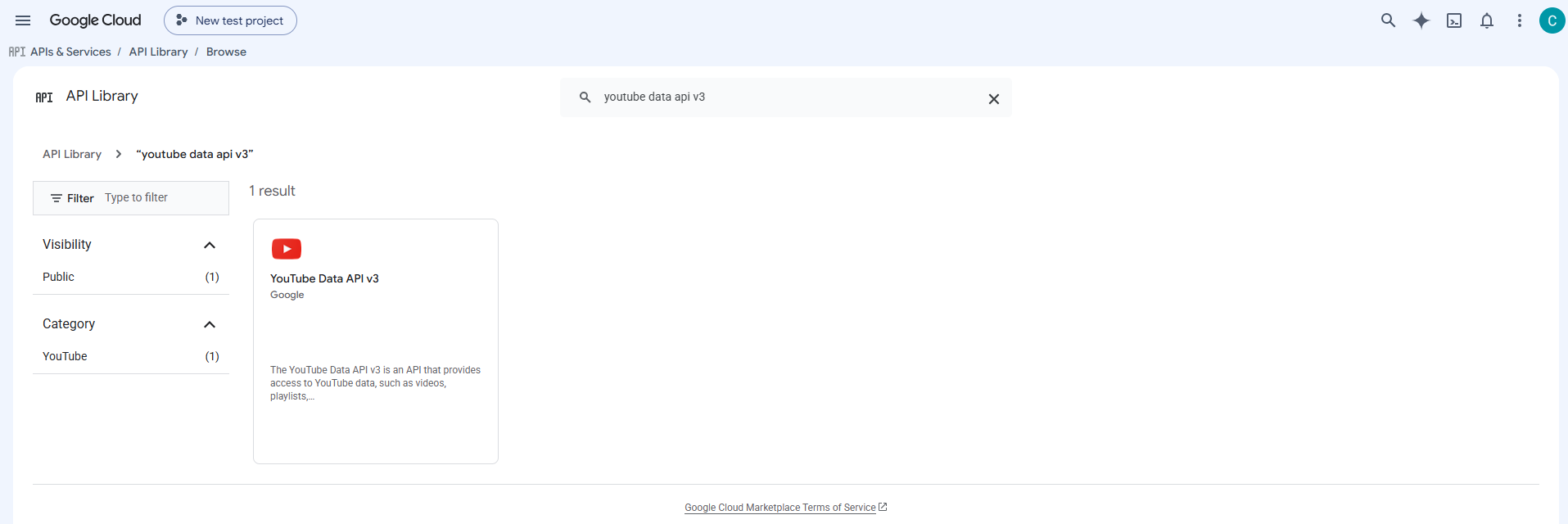
- Install Video Hub and connect it to YouTube. The Client ID and Client Secret guide covers the Google side.
- In Videos → Settings → Post options, leave Import videos as regular posts unchecked and choose the words for your video addresses.
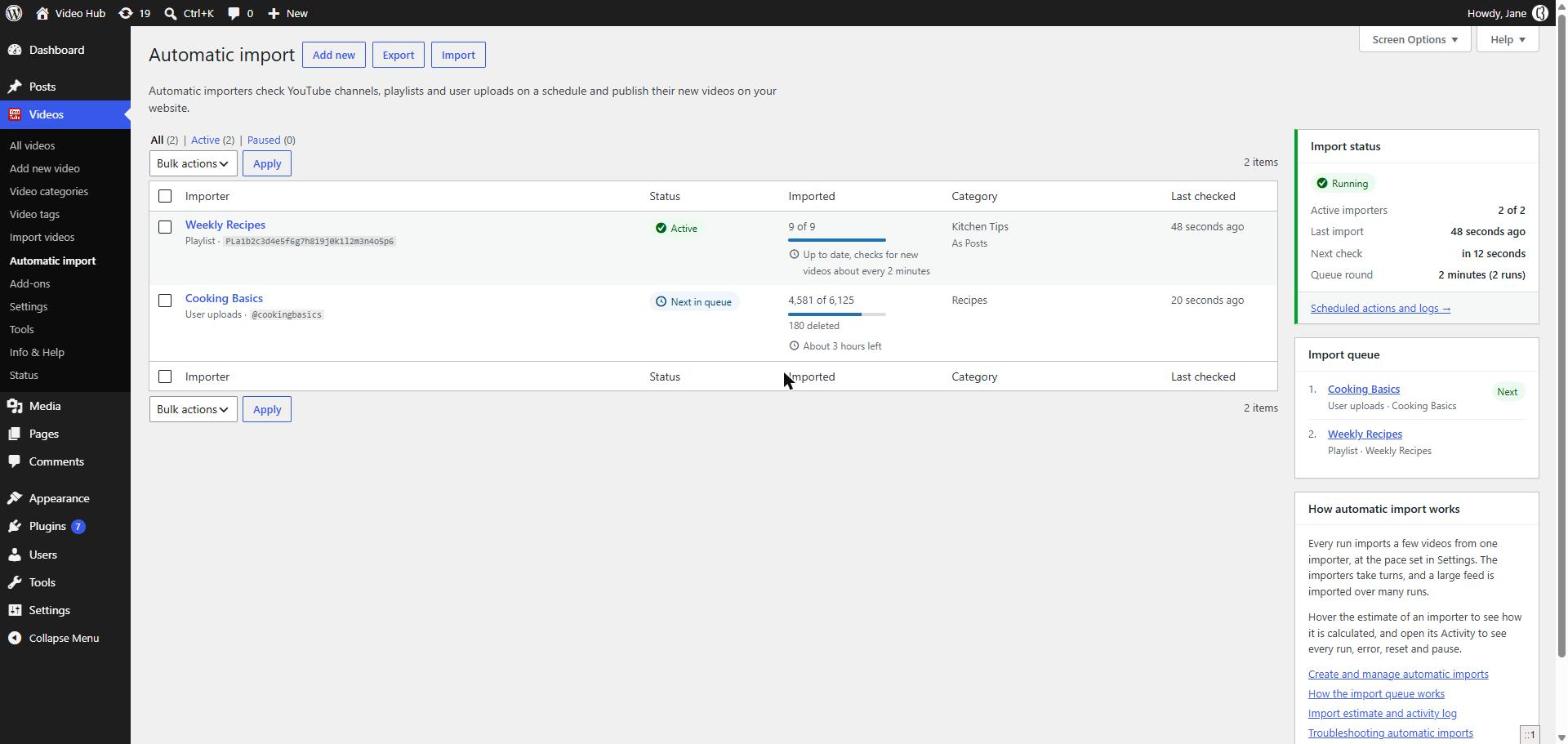
- Import videos: hand-pick them on the Import videos page, or create an automatic import that keeps a channel or playlist in sync.
- Add the video archive to your menu, or place a Video Archive or Playlist block on any page.
Video custom post type FAQ
Is a custom post type better for SEO than regular posts?
Search engines treat both the same way: each one is a normal page with its own URL, title and text. The difference is organisation. A video post type gives your videos their own archive, categories and tags, which keeps the library tidy and easy to link, while regular posts mix videos into your blog.
Can I change the /video/ part of the address?
Yes. The words used in the addresses of video pages, video categories and video tags are settings in Videos → Settings → Post options. Changing them changes every existing address, so choose them before your videos get shared or indexed, or add redirects afterwards.
Can some videos be imported as posts and others as videos?
Yes. Every automatic import has its own post type setting, so one channel can fill your Videos section while another goes straight into your blog.
Do video pages show up in WordPress search and the RSS feed?
They show up in WordPress search when video pages are public, which is the default. Adding them to the homepage and to the main RSS feed is optional: two checkboxes in the post options.
What happens to the video pages if I deactivate the plugin?
The posts stay in your database, but WordPress only shows a custom post type while the plugin that registers it is active. Reactivate Video Hub and the pages come back. Videos imported as regular posts keep their text visible either way, although the player itself is added by the plugin.