
Automatic video imports pull videos from YouTube playlists, channels or user uploads. They can’t be created from searches. Imports run in the background of your website and are triggered at the interval you set in the import options.
Important considerations
Before creating automatic imports, keep the following in mind:
- Imports are triggered by your website visitors. When your site receives a visit and it’s time to run an import, the plugin triggers it. If you set imports to run every 5 minutes but the site isn’t visited that often, imports will be delayed. You can work around this with conditional imports and a cron job — see the import options.
- The plugin imports one feed at a time. The more automatic imports you create, the longer each one waits for its turn.
- Avoid overloading your server by not importing too many videos at once. Around 15–20 videos per run is usually safe unless your server can handle more.
Creating an automatic import
Go to plugin page Automatic import and click Add New next to the title. The Add new feed screen opens.
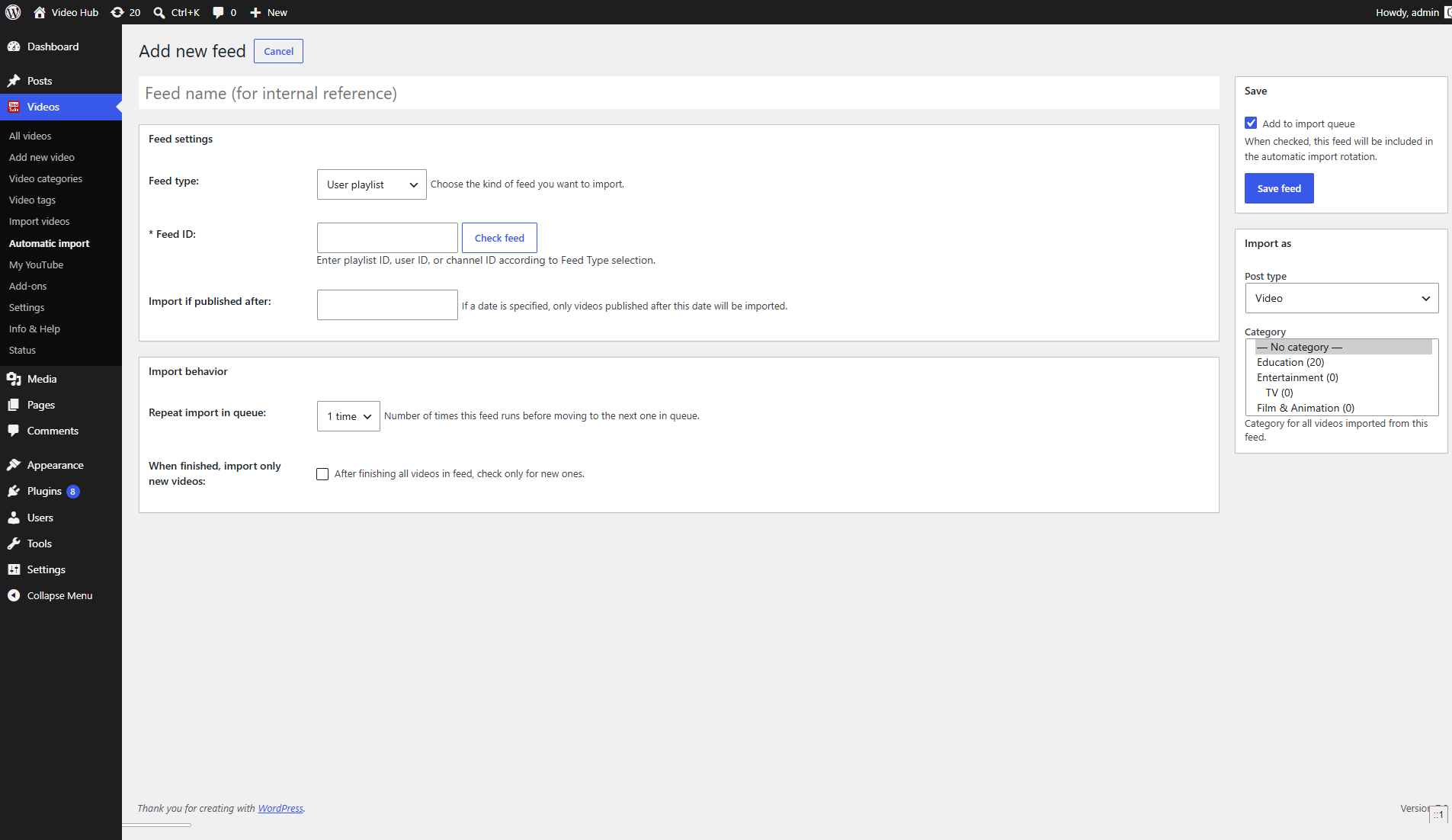
Feed name
A name used for internal reference only. Use something meaningful so you can quickly find the feed in the list.
Feed type
The kind of resource to import: a YouTube playlist, a channel or a user’s uploads. It works together with the Feed ID.
Feed ID
The ID of the playlist, channel or user, matching the Feed type. Use the Check feed button next to the field to confirm the ID returns the feed you expect before saving.
Import if published after
To skip older videos, set a date and only videos published after it will be imported. Leave it empty to import the whole feed. Date filtering applies to channel and user feeds, not to playlists.
Repeat import in queue
How many times this feed runs before moving on to the next feed in the queue.
When finished, import only new videos
Once the plugin has processed the whole feed, later runs only check for new videos instead of going through the entire feed again. For playlists, set them on YouTube to be ordered by date added for this to work reliably.
Import as (post type & category)
In the Import as box on the right, choose the post type the videos are imported as and the category they are assigned to.
Add to import queue
In the Save box, tick Add to import queue to include the feed in the automatic import rotation, then click Save feed.
Managing automatic imports
The Automatic import page lists all your feeds, with columns for the feed type, import category, feed ID, how many times the import repeats, how many videos were imported, the feed total, when it was last queried and its status. You can filter by Active / Inactive, and use Export / Import to move feeds between sites.
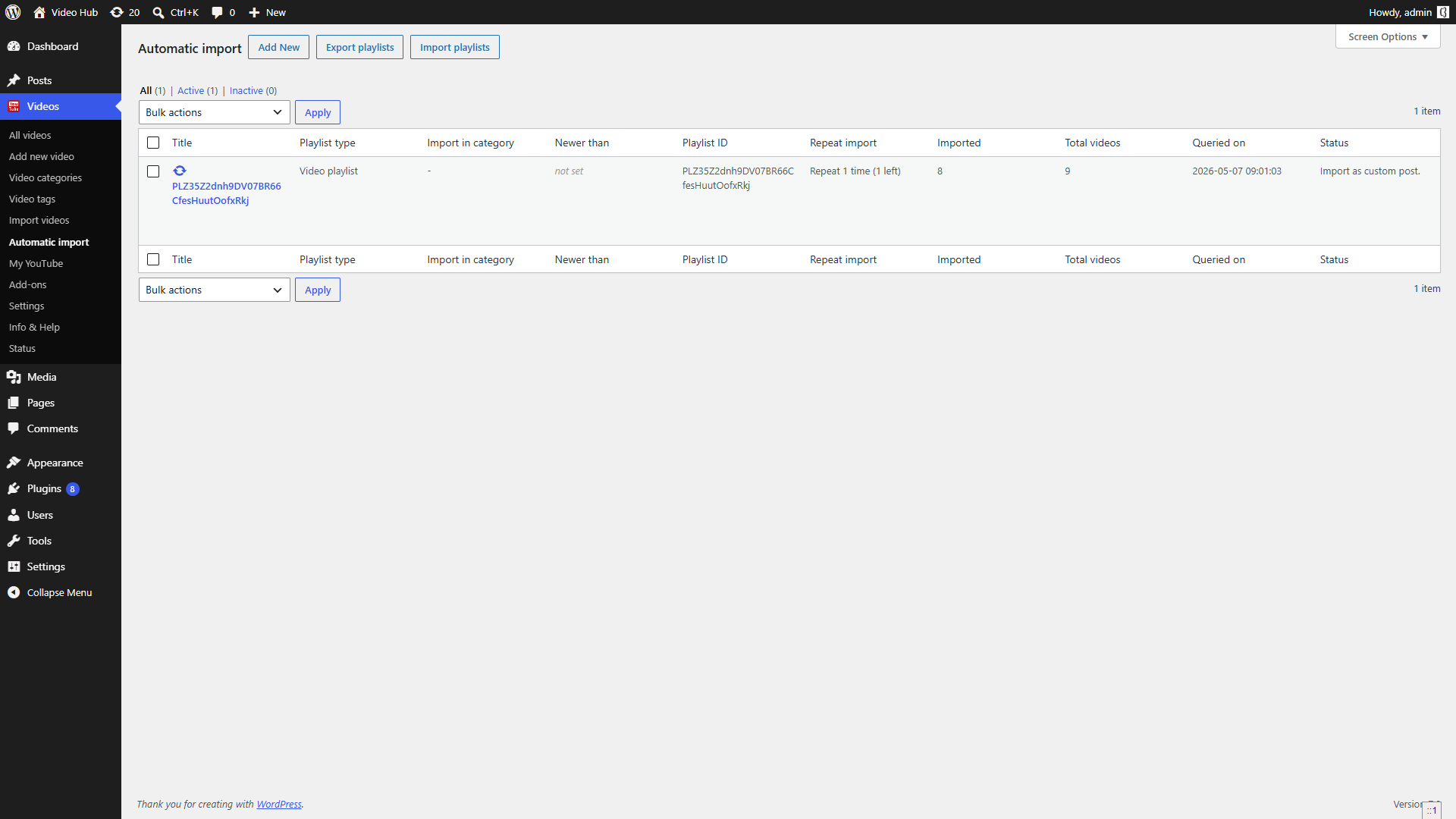
Hover over a feed to reveal its actions: pause removes it from the import queue (you can resume it later), while reset clears its counters and forces the importer to start the feed again from the first videos.