
After you’ve installed and activated Video Hub, the next step is to let it talk to YouTube. Video Hub reads channels, playlists and videos through the YouTube Data API, and the API needs a key to identify your Google project.
Since Video Hub 2.2 the API key is an optional fallback, used only when no YouTube account is connected. The recommended setup is OAuth credentials: they import public videos plus your own unlisted videos and private playlists, and once connected the key isn’t needed. Use a key when you can’t use OAuth — it is enough to import public videos, channels and playlists. Not sure which one you need? See how to get a YouTube API key (and when you need one)
Here’s how to create a server key in the Google Cloud Console.
Create a new project
Open the Google Cloud Console and create a new project to hold your API access.

Find the YouTube Data API
With the project selected, open the API library and search the list for “YouTube Data API“, then click it.

Enable the API
On the next screen, click Enable to turn the YouTube Data API on for this project.

Start creating credentials
With the API enabled, you can create the credentials your site will use to call it.

In the current Google Cloud Console, open APIs & Services → Credentials and click Create credentials → API key. Then edit the key: under API restrictions allow only YouTube Data API v3, and under Application restrictions choose None or IP addresses. Don’t use Websites — the requests come from your server, not from the browser, so a website restriction blocks them.

Copy your server key
Google now shows your API key. Copy it — you’ll paste it into Video Hub next.

Add the key to Video Hub
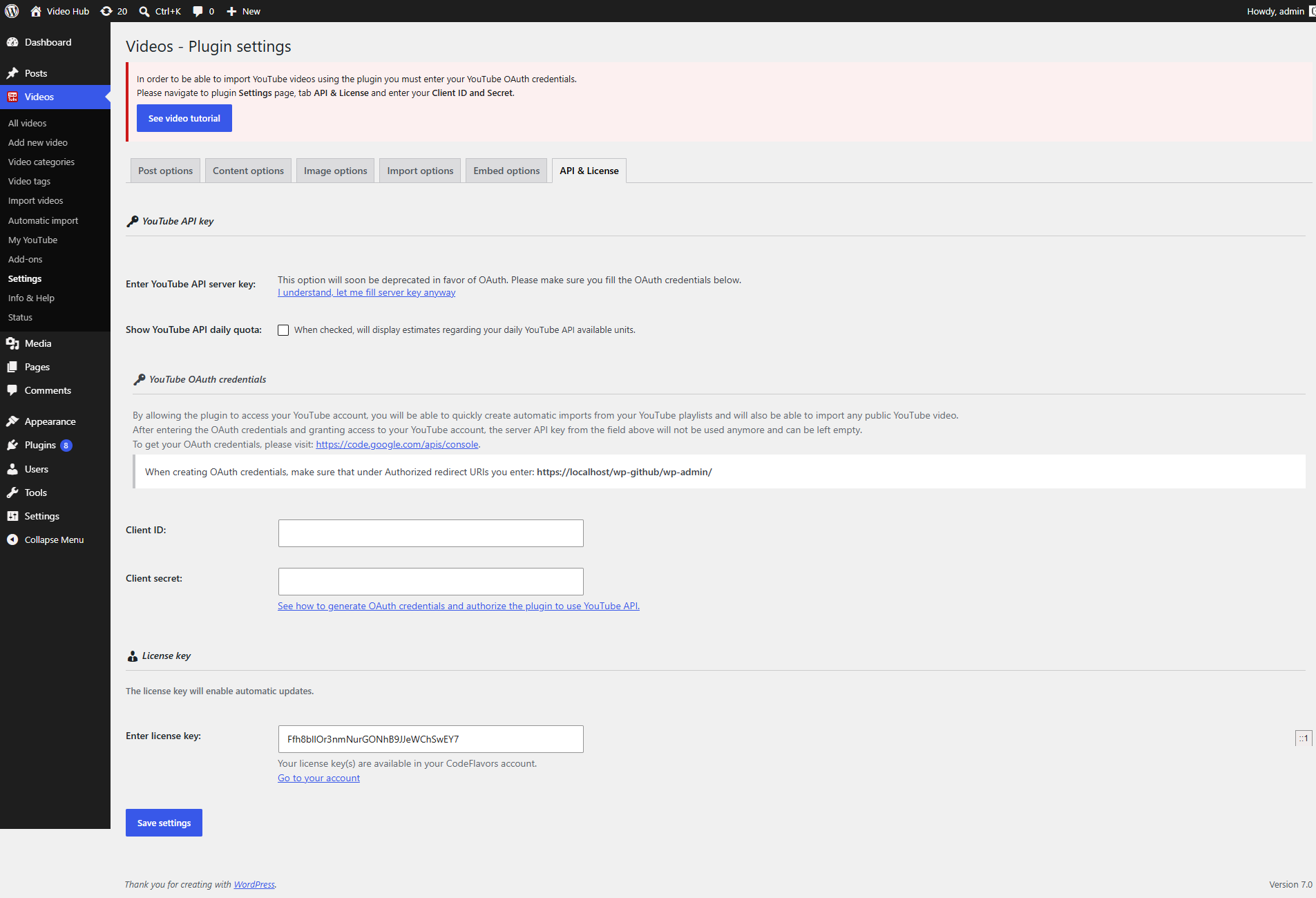
In WordPress, open Videos → Settings and go to the API & License tab. Expand the API key section (“Optional fallback, used only when no YouTube account is connected”), paste the key into YouTube API key and save. Click Test connection in the side panel to check it — the test uses 1 unit of quota.
That’s it — Video Hub can now query YouTube. Next, add your license key to unlock one-click updates, then start importing your videos.