
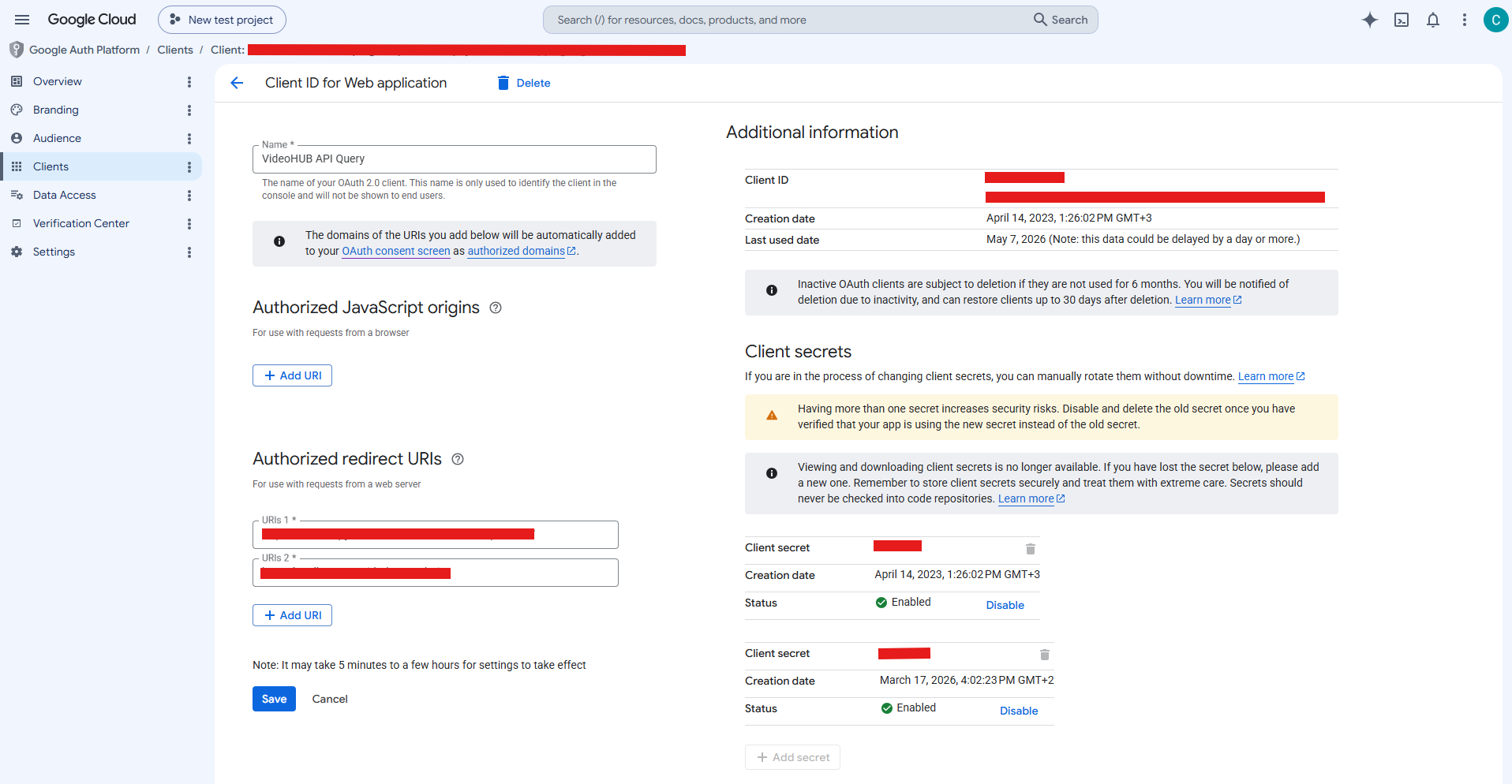
To import YouTube videos into WordPress with OAuth, you need two credentials from Google: a Client ID and a Client Secret. They come from a free Google Cloud project and tell YouTube that your site is allowed to read video data. Here’s how to get them.
What you’re creating
- A Google Cloud project (free)
- The YouTube Data API v3, enabled on that project
- An OAuth Client ID and Client Secret for a web application
Step 1 — Create a project & enable the API
In the Google Cloud Console, create a new project, then open APIs & Services → Library, search for YouTube Data API v3 and enable it. This is the API your Client ID will be authorized to call.
Step 2 — Configure the OAuth consent screen
Under APIs & Services → OAuth consent screen, set the app name, your support email and the authorized domain. You can keep it in testing mode and add your own Google account as a test user.
Step 3 — Create the Client ID & Secret
Go to APIs & Services → Credentials → Create credentials → OAuth client ID, choose Web application, and add the redirect URI that Video Hub shows you. Google then displays your Client ID and Client Secret — copy both.
Step 4 — Paste them into WordPress
In Video Hub, paste the Client ID and Client Secret into the authentication settings and complete the OAuth connection. You can now import any public video plus your own playlists and unlisted videos. More on OAuth vs. a plain API key.
A note on quotas
The YouTube Data API gives each project a daily quota. Video Hub shows a daily quota estimate so heavy imports don’t hit the ceiling. See the FAQ for more on keys and quotas.
Exact screens change over time — for the current click-by-click walkthrough, see the documentation.
Got your Client ID? Start importing
Connect YouTube and turn videos into content you own. 30-day money-back guarantee.