
Importing YouTube videos automatically from a given source — a channel, a playlist or a user’s uploads — is an easy task with Video Hub. This tutorial explains how automatic imports work behind the scenes and how to tune them so they run reliably without overloading your server. For the step-by-step of creating a feed, see Automatic video import.
Setting up the import options
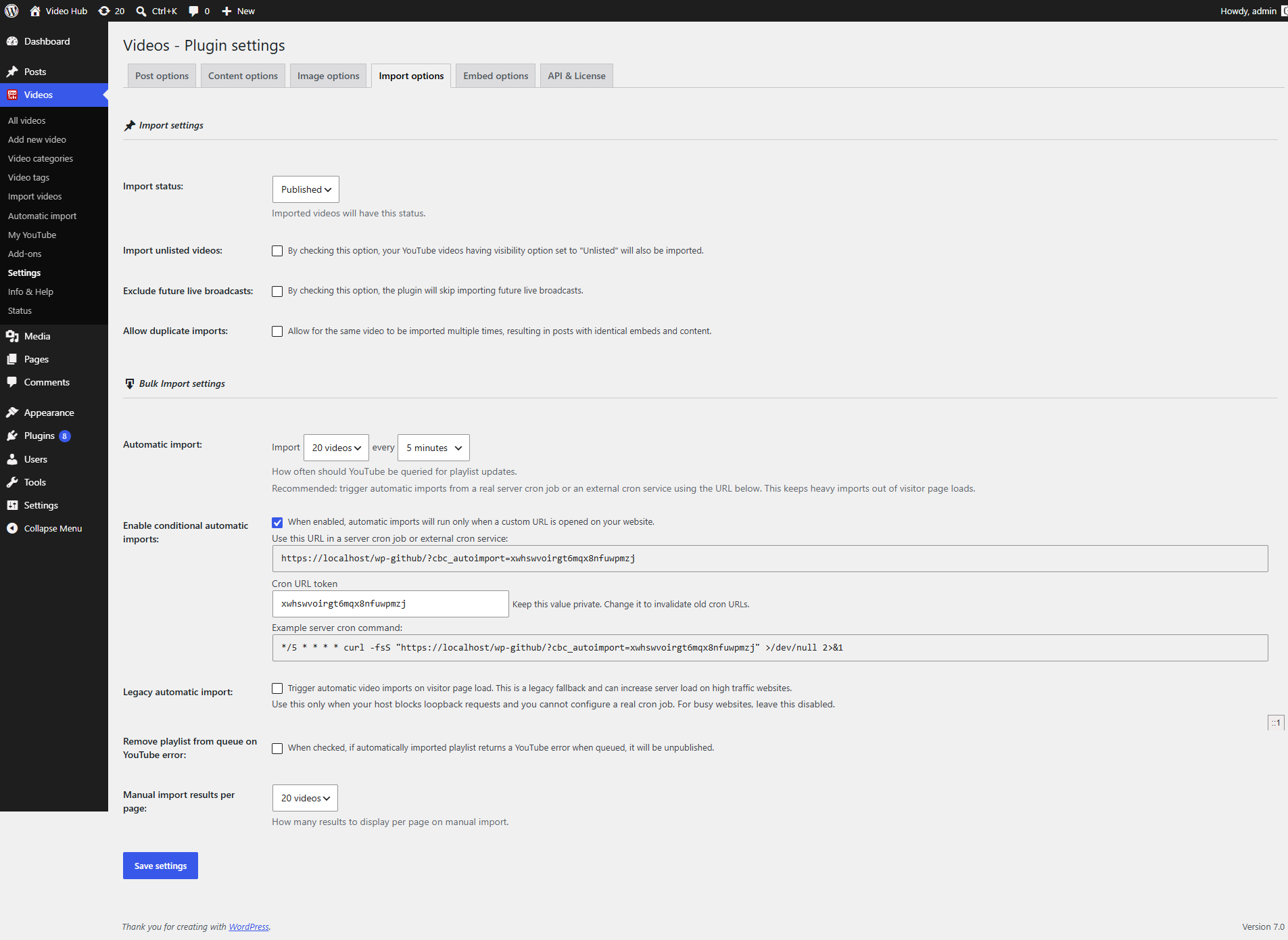
The first thing to do before starting any automatic import is to set the import options. You will find them in the plugin Settings page, tab Import options.
The import frequency
The import frequency (the Automatic import option) determines how many videos are imported at once and how often. You can import from 1 up to 50 videos, at intervals ranging from every minute to once every 24 hours.
This setting dictates how much load you put on your system. When a video is imported as a WordPress post, the plugin asks WordPress to do the following, in this order:
- insert the post details into the database;
- import the featured image from YouTube (a resource-intensive step) into your Media Library and assign it to the new post;
- create a new WordPress category (if needed) and assign the post to it;
- create the YouTube tags to be imported and assign them to the post.
Because the process is intensive, test different combinations of frequency and number of videos until you find the one that works best for your server.
Enabling conditional imports
To understand this feature, you first need to know how automatic imports are triggered: by your website visitors. When the timer expires, the plugin waits for the next visitor and triggers the import on that visit.
For example, if you set imports to run every 5 minutes, the first visitor after those 5 minutes triggers the import; the plugin then processes the videos in queue and waits another 5 minutes before repeating.
This is unreliable on low-traffic sites, because there’s no guarantee a visit arrives on schedule. On high-traffic sites the opposite problem can occur: two visitors arriving at the same time can trigger concurrent imports and create duplicate videos.
Conditional imports solve both problems. When enabled, an import runs only when a specific URL on your website is requested (the URL is shown once you enable the option, and includes a unique security token). You can point a server cron job at that URL so imports run consistently, and because the URL is requested only once per interval, concurrent imports — and the duplicates they cause — are eliminated. See the import options for where to enable this.
Legacy automatic import
By default, when an import is due the plugin makes a quick background call to your website to trigger it. That call is capped at about one second, so your visitors’ pages don’t hang while the import runs — the work happens in the background.
The older approach used WordPress’s shutdown action to import the queued videos during the visitor’s page load, which made the page appear to keep loading until the import finished (noticeable when importing many videos). If the default background method doesn’t work on your server, enable Legacy automatic import to fall back to the old behaviour.
Conclusion
Always set the number of videos imported at once to a realistic figure, matched to your server’s performance. Don’t jump straight to 50 videos every minute — find the numbers that work for you. If you’re unsure, start with 10–15 videos every 5 minutes, which works on most websites.
For the most reliable results, use conditional imports together with a server cron job. Setting up a cron job is a more advanced step, but your hosting provider can usually help if you’re not sure how.
See also
- Automatic video import — create and manage import feeds.
- Import options — all the settings described above.
- Image import options — control how featured images are imported.