
To manually bulk import videos, open the plugin menu and go to Import videos. The screen is split in two: the search form and import settings on the left, and the video results on the right.
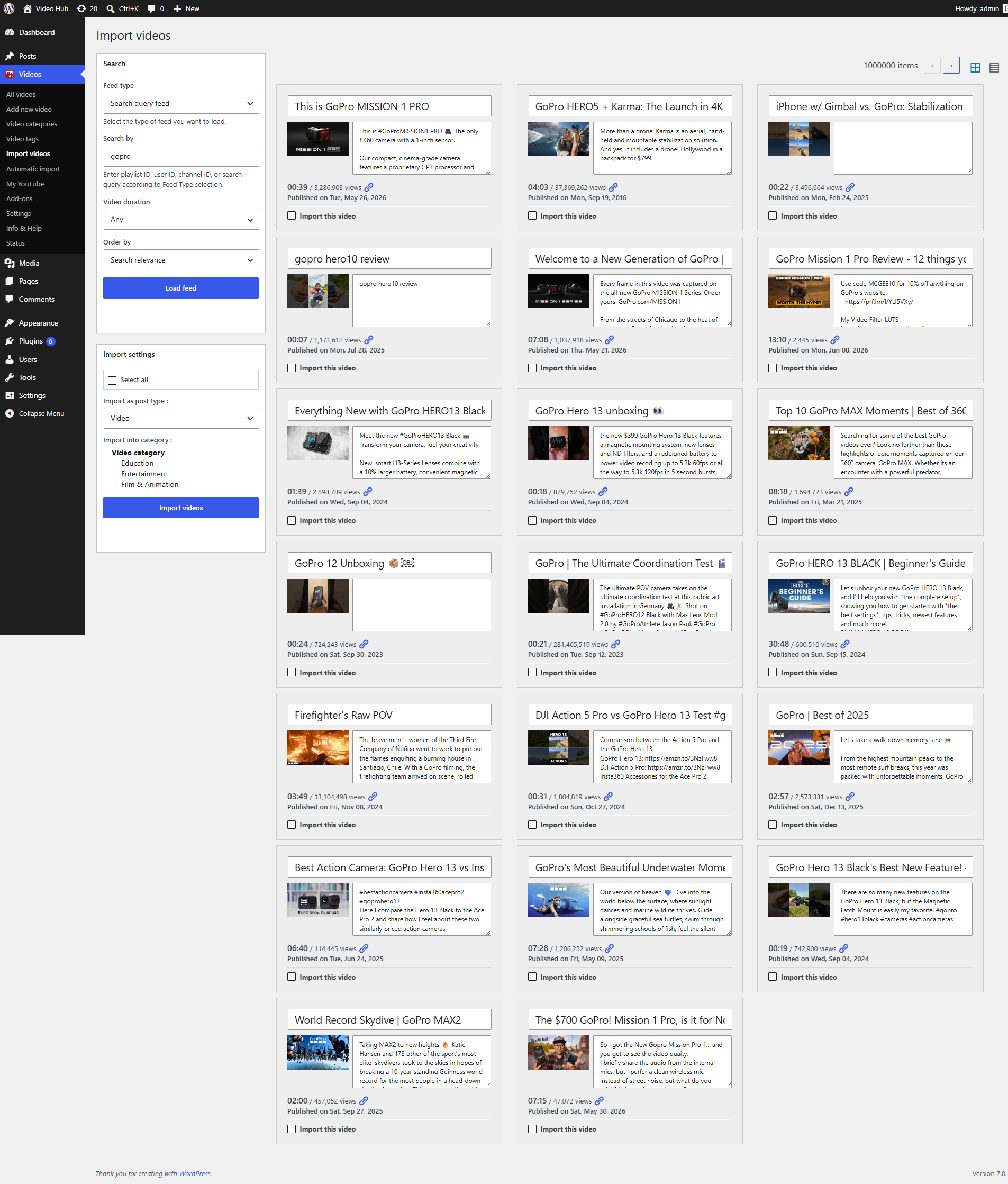
Performing a search
Fill in the search criteria in the left column and click Load feed.
Feed type
Choose what you want to load:
- Search query: searches YouTube for your query and shows the results;
- Playlist: loads a YouTube playlist by its ID;
- User: loads all uploads of a given user;
- Channel uploads: loads all videos of a given channel ID.
Video duration
Applies to search queries only. Lets you restrict results to short (under 4 minutes), medium (4–20 minutes) or long (over 20 minutes) videos.
Search query
The term to search for or, depending on the feed type, the playlist ID, user ID or channel ID.
Order by
The order in which results are returned (date, views, relevance, rating, etc.).
You can change the number of results shown per page from the import options. To run a different search at any time, just change the form and click Load feed again.
Selecting and importing videos
Each result has an Import this video checkbox — tick the videos you want, or use Select all to select every result on the page.
In the Import settings box on the left, choose the post type the videos are imported as and the category they go into. If your site has several users that can create posts, you can also pick the author. When everything is set, click Import videos.
Please note that if you don’t have multiple users with at least post-creation capability, the author option isn’t shown and all posts are created as the currently logged-in user.