
For publishers, niche sites & education libraries
Build a video publication from YouTube channels
Follow the channels that matter to your audience, pick the videos worth publishing, review them as drafts and build an organized video archive on your own domain — with an editorial step, not a raw feed.
The workflow
Not a playlist widget — a publishing workflow
Feed widgets show one channel the way YouTube arranges it. A publication is different: videos from many sources, chosen by you, sorted into your own sections, with your own words around them. Video Hub is built for that workflow.
- DiscoverSearch YouTube or load any channel, user or playlist.
- SelectPick videos from several channels and searches into one import.
- ReviewImport as drafts or pending review, then add your own context.
- PublishInto your own sections, with category playlists and archive pages.
- Keep up to dateSources import on their own; logs and tools keep the library healthy.
01–02 · Discover & select
Find the videos worth publishing — across channels
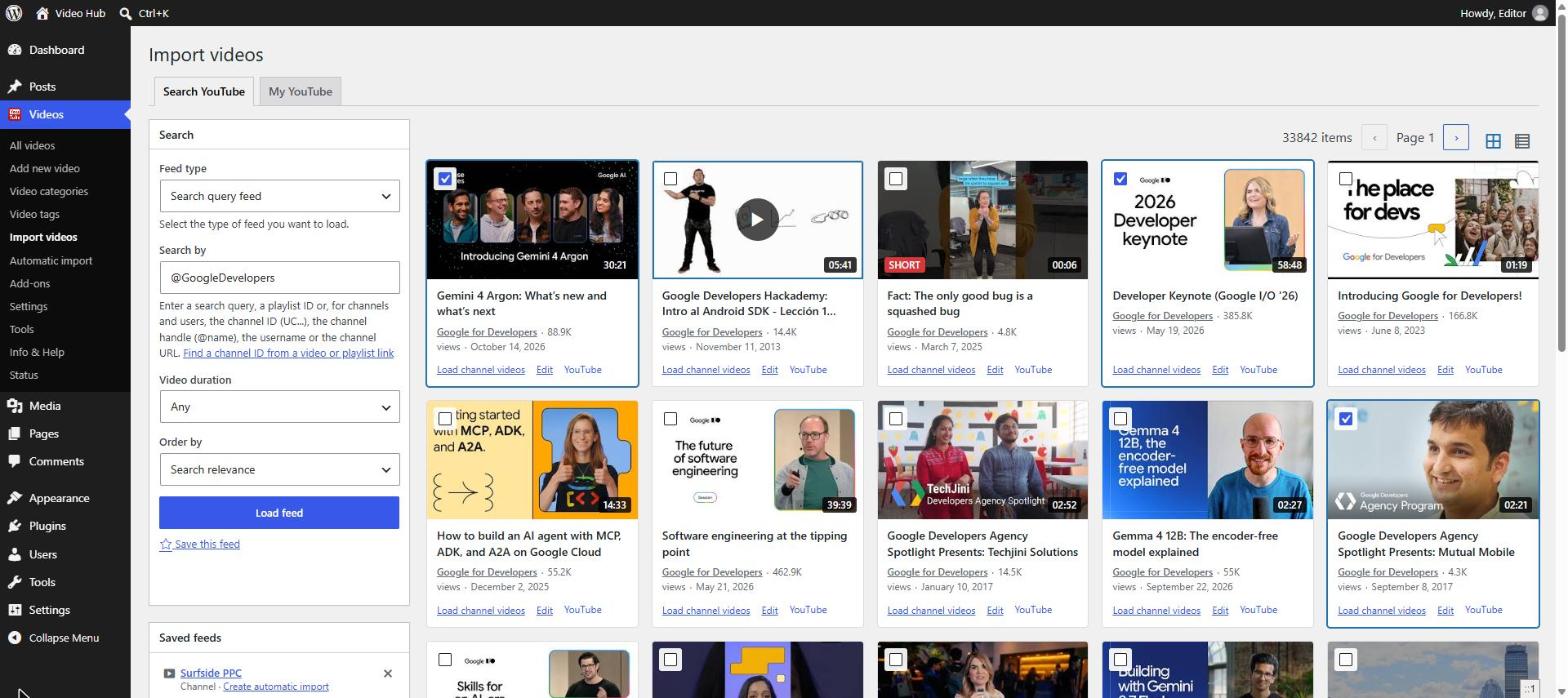
Search YouTube or load any channel, user or playlist from the Import videos page. Results show as cards with the duration, channel, views and date; open any video in a preview to watch it before you decide.
- Your selection is kept when you change pages and switch feeds — three videos from one channel, two from a search, one from a playlist, imported together
- Videos already on your site are marked, so nothing gets published twice
- Save the channels, playlists and searches you check every week and reload them in one click
- Jump from any video in the preview to the rest of its channel
03 · Editorial review
Review before anything goes live
Every manual or automatic import can create posts as published, draft or pending review. Send videos from the channels you follow to drafts, and let an editor add an introduction, context, links and the right categories before publishing.
That added value is what turns a collection of embeds into a publication readers — and search engines — have a reason to visit. Our video SEO guide explains what helps.
- Choose the post status, category and author for each import
- Edit titles and descriptions before you import
- Imported videos are regular posts or a dedicated video post type — editable like any other content
Automatic sources
Follow your sources automatically
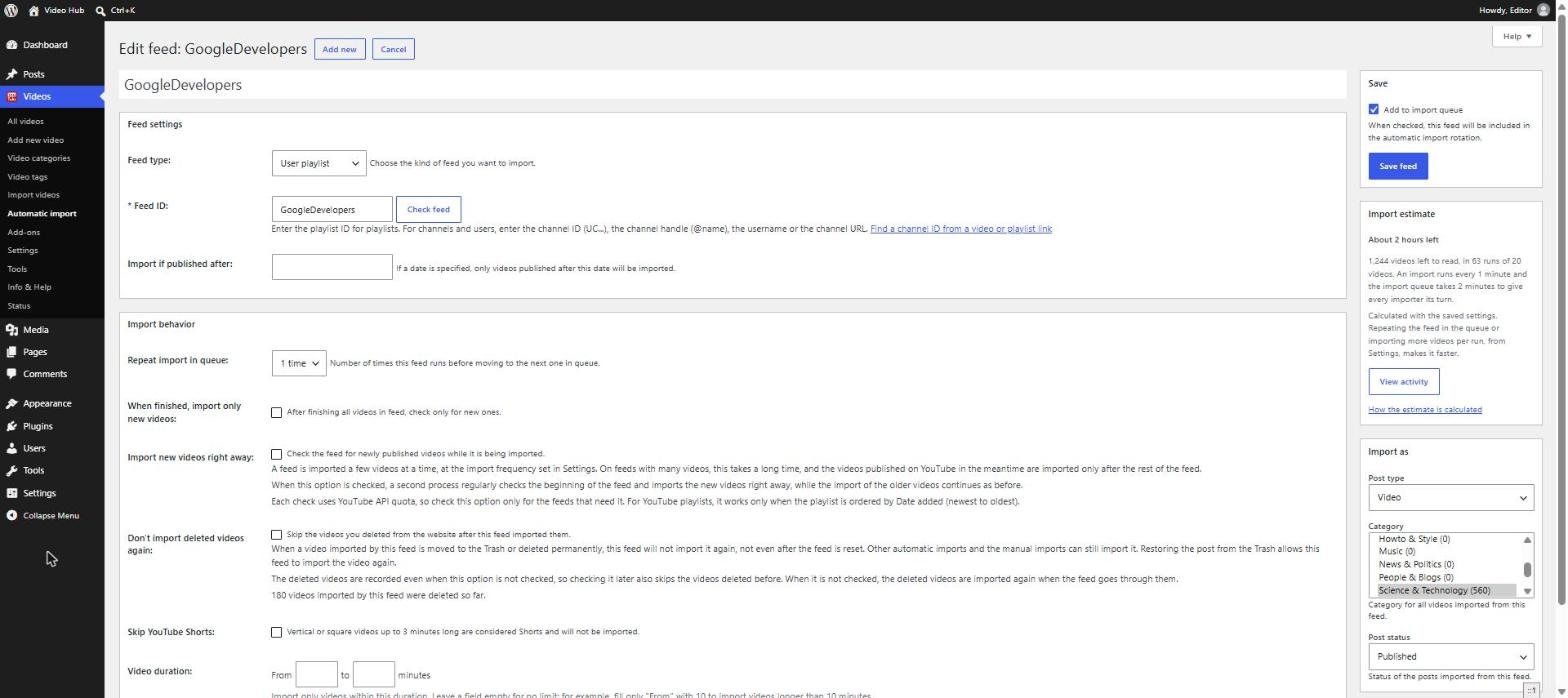
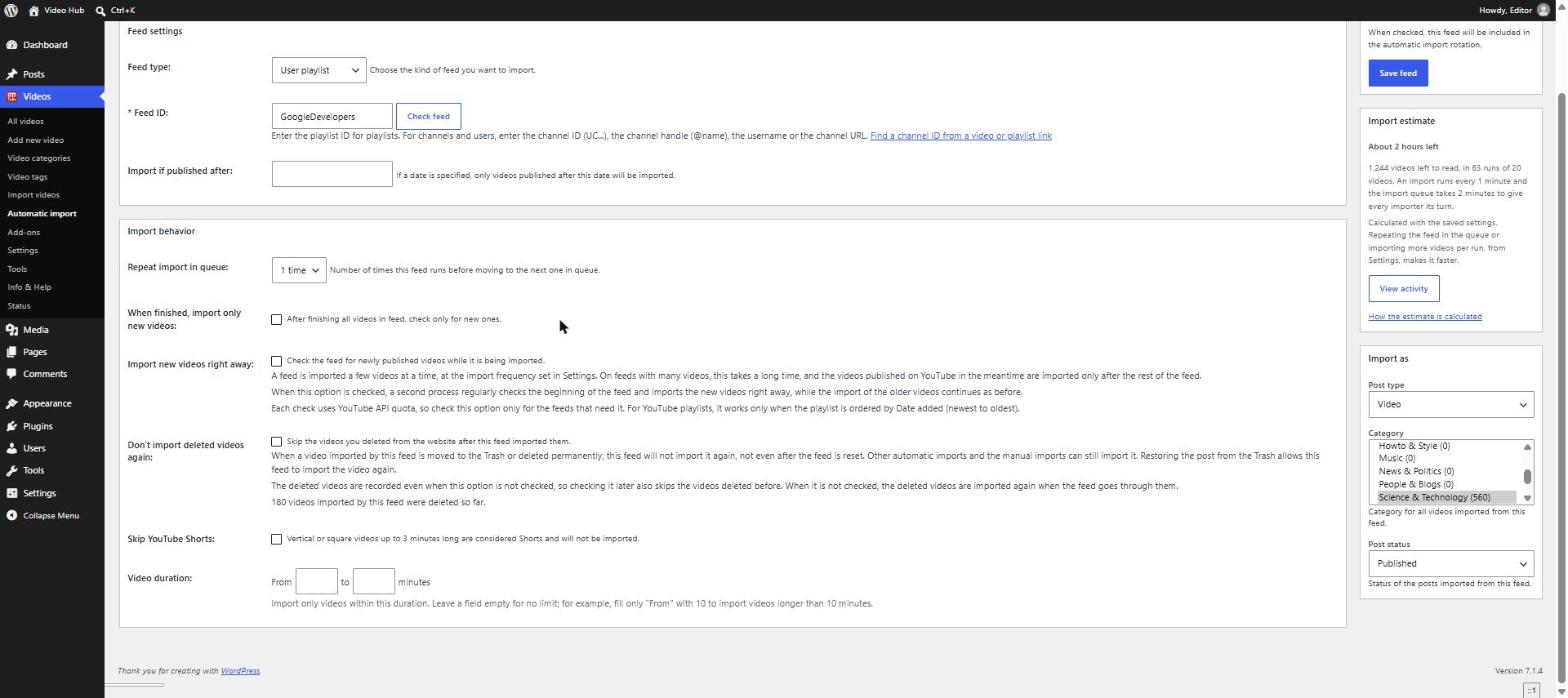
Turn each channel or playlist into an automatic import with its own category, author, post status and filters — so only the videos that fit your sections come in.
- Only videos published after a date, or within a duration range — for example longer than 10 minutes
- Skip YouTube Shorts when your sections are for long-form videos
- Delete a video you don’t want and it won’t come back with the next import
- New uploads picked up right away, even while a big back catalog is still importing
04 · Publish
One archive, many channels
Send several channels into the same category and build a playlist from that category: one gallery that mixes videos from all of them. Categories also get their own archive pages, so every section of your publication has a home.
- Six playlist themes, with pagination or load more
- Shorts and vertical videos keep their shape in every playlist
- Place sections with Gutenberg blocks, Elementor widgets or shortcodes
05 · Keep up to date
Stay in control at scale
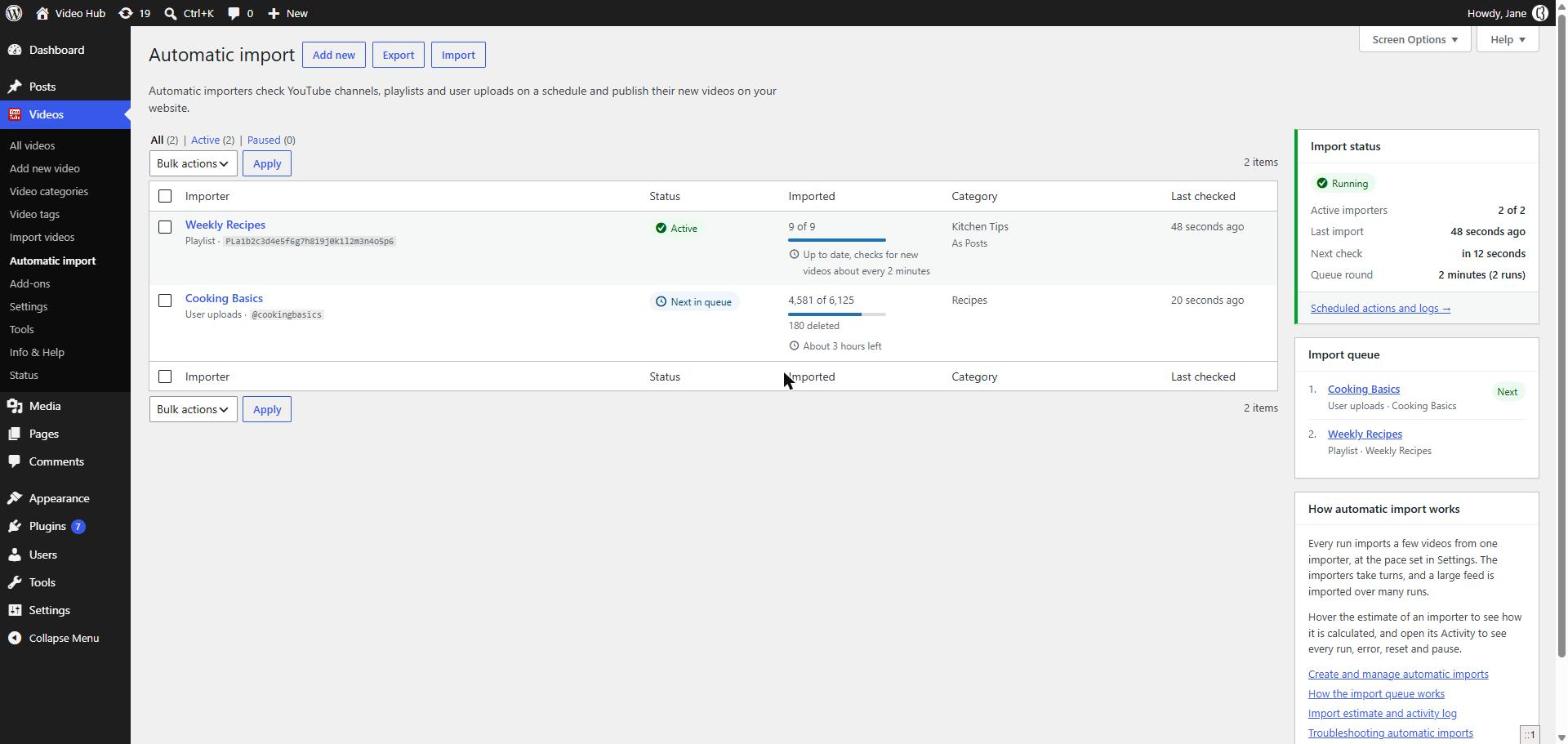
Dozens of sources and thousands of posts stay manageable: you can see what every import did, and tidy the whole library from one Tools page.
Activity log for every source
What was imported, what was skipped and why, what failed — every run and every YouTube error.
Import estimate
How long until a source’s back catalog is fully imported, or how often a finished one checks for new videos.
Removed-video check
A post is unpublished only when YouTube confirms the video was deleted, made private or can’t be embedded.
Update videos
Refresh views, thumbnails and other details across thousands of posts with Tools → Update videos.
Delete old videos
Clear out imported posts older than a number of days — useful for news-style sections.
Export settings & imports
Save your settings and import setups to a file and launch the next site in minutes.
Education & tutorials
Turn hundreds of tutorials into a library
Course creators and schools use the same workflow to turn a pile of tutorials into a library students can find their way around, with your own text on every lesson page.
Video Hub doesn’t restrict access to members — pair it with your membership plugin if you need that.
A video library, step by step
- One category per course or topic — each import files its videos in the right place
- A playlist per category — on the course page, in any of the six themes
- Captions on by default, in the language you choose
- Your own text on every lesson — import as drafts, add notes and exercises, then publish
FAQ
Questions publishers ask
Can I import videos from channels I don’t own?
Yes, any public video can be embedded and imported. The video keeps playing through YouTube’s player, so the channel still gets the view. Add your own commentary to each page — publishing hundreds of pages that only repeat YouTube descriptions adds little for readers and search engines alike.
Can automatic imports follow a keyword?
Automatic imports follow channels, playlists and user uploads. Searches are for discovery: run them on the Import videos page, save the ones you repeat, and import the results you choose.
Will a video I deleted come back with the next import?
Not if you turn on “Don’t import deleted videos again” for the import. Videos you’ve removed from your site stay removed, and the activity log shows them as skipped.
How many sites can I use it on?
One site with Single, up to five with Business and unlimited with Agency. Settings and import setups can be exported to a file, so a second site starts from the first one’s configuration. See pricing.
From customers
Built for big video libraries
★★★★★
“The plugin works exactly the way it is meant to work. It saved me a load of time from adding videos one by one from YouTube. I had a small requirement regarding custom post type and the author resolved it very quickly.”
Blitz101 · CodeCanyon customer
★★★★★
“WOW! Our YouTube video channel has risen to another level after being able to import large amount of content with only a few clicks! It is awesome! Thanks!”
EstudioE · CodeCanyon customer
These reviews are from Video Hub’s years on CodeCanyon (Envato). The plugin is no longer sold there — it’s now available exclusively through CodeFlavors.
Start your video publication
Plans start from $49/year for one site, with every update and new feature while your license is active — backed by a 30-day money-back guarantee.